 Statiko Docs
Scheduled
See every post waiting to go out, then edit, reschedule, send or cancel it.
Scheduled lists every post that has a time and hasn't gone out yet, with the next one to go out at the top.
You'll find it under Posts → Scheduled in the menu on the left. Searching, picking a channel and reading the cards work just like on Drafts.
How posts get here
- You schedule a post in the post editor.
- You press Schedule on a draft.
- You set up a post that goes out regularly on Repeats. Its next posts show up here with a repeat label.
Once a post goes out, it moves to Sent. If Telegram doesn't take it, you'll find it there marked Failed.
What the card tells you
The label under the text shows the date and time the post goes out. You may also see repeat or auto-delete next to it. The bottom line says Scheduled and how long is left until the post goes out.
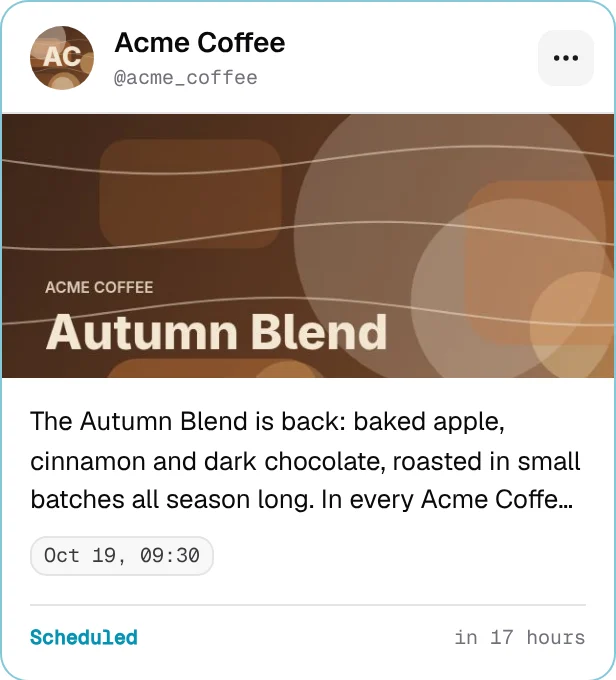
Change the text or the time
Click the card, or press ⋯ and then Edit. Change the text, the pictures or the time, then press Save. To close without keeping your changes, press Discard changes.
Send it now or cancel it
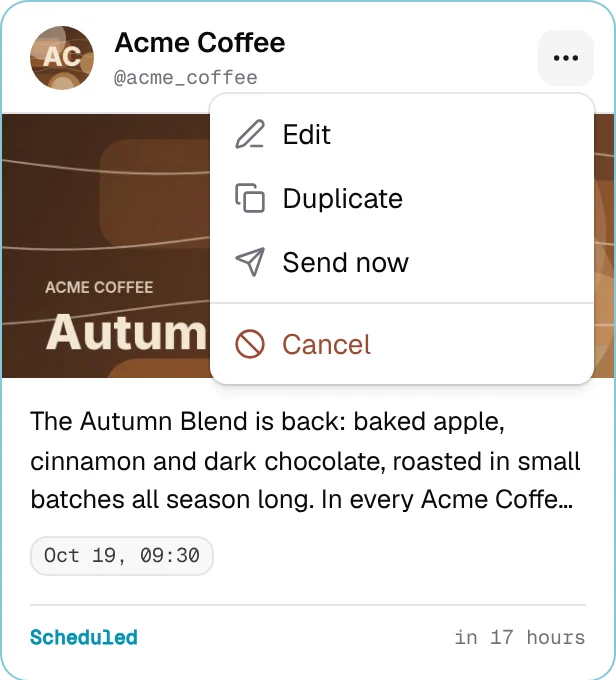
Press the ⋯ button on a card:
| Button | What happens |
|---|---|
| Edit | Opens the post so you can change it. |
| Duplicate | Opens a copy. Nothing is created until you save it. |
| Send now | Sends it straight away (you'll be asked to confirm). |
| Cancel | Stops it from going out, right away. |
Good to know
- A cancelled post leaves this page. To see it again, open the Calendar, press ⋯ next to the arrows and turn on Show cancelled.
- Cancelling a post that goes out regularly only skips that one time. To stop it for good, use Cancel repeat on the Repeats page.
- Times are shown in your own time zone, the one your computer uses.
- Team members who aren't admins can look at every post but can't change anything.
- Your AI assistant can change the plan. With the Creator tools connector, it can edit, move or cancel scheduled posts for you.