 Statiko Docs
Drafts
Keep unfinished posts, see what each one still needs, and schedule them when they are ready.
Not every post is ready the moment you start it. Drafts keeps the unfinished ones: maybe you haven't picked a channel, written the text, added a picture or chosen a time. That's fine: a draft never reaches Telegram until you schedule it or send it.
You'll find it under Posts → Drafts in the menu on the left. The other pages next to it, Scheduled, Repeats and Sent, look and work the same way, so what you learn here applies there too.
Start a draft
- Press New draft, or the + New draft card at the end of the list.
- In Media, pick some files, press Create post, then press Save as draft.
- In the post editor, wherever you opened it, press Save as draft.
- In Radar, save a post it wrote for you. Radar can also write drafts on its own.
See what each draft still needs
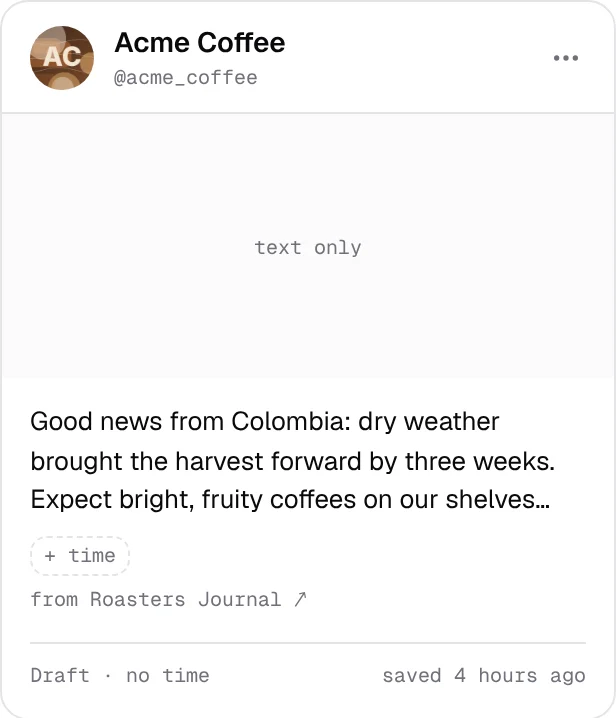
Each draft is a card. The bottom line of the card says Draft · ✓ Ready when nothing is missing. Otherwise it tells you what's left to do:
| It says | What to do |
|---|---|
| no channel | Pick at least one channel. |
| empty | Add some text, a picture or a file. |
| no time | Choose when it goes out. |
| needs attention | Open it. The editor shows you what's wrong. |
A card with no channel says No channel at the top, and one with no time shows + time.
Find a draft
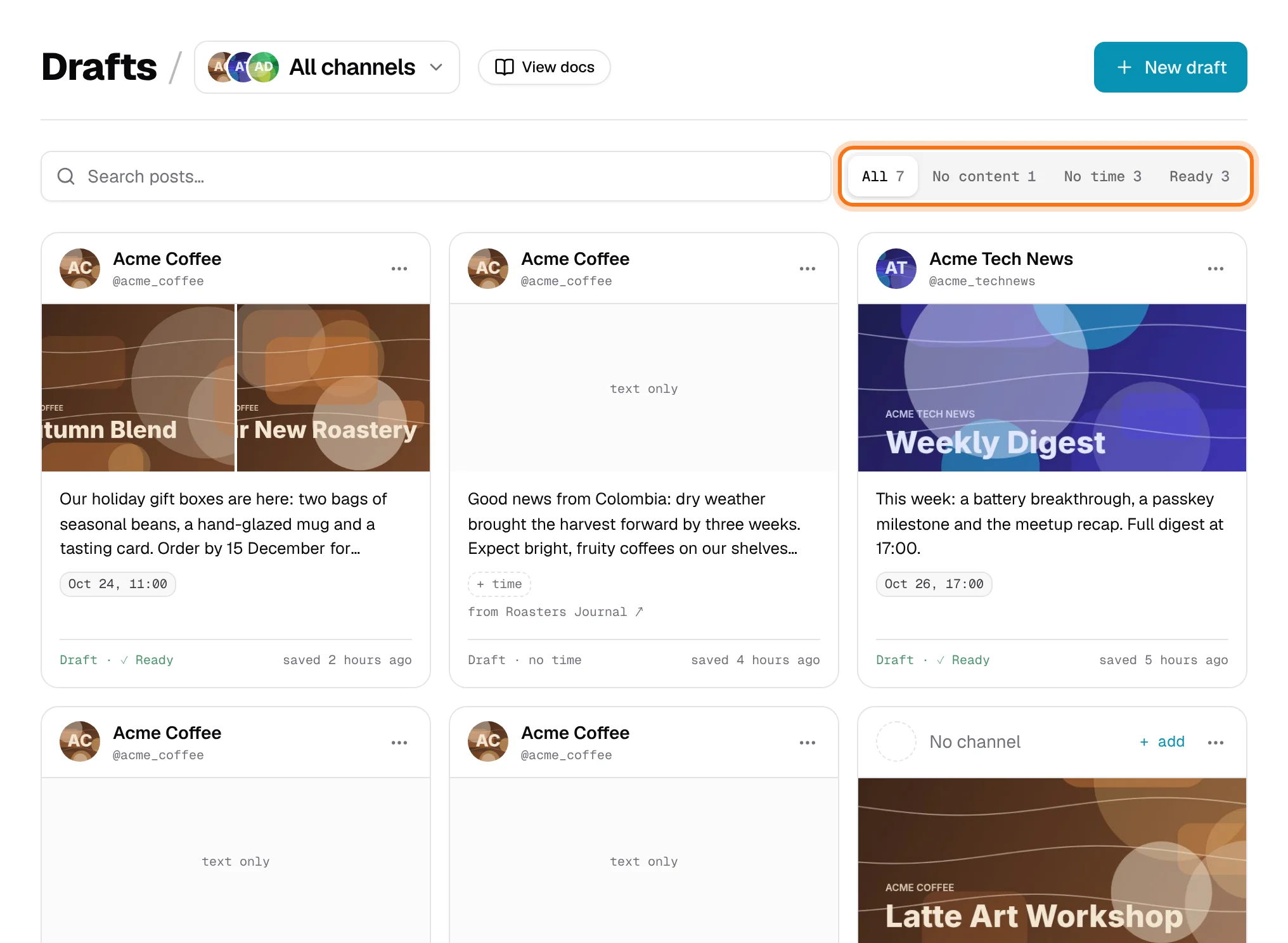
- The tabs next to the search box sort your drafts: All, No content, No time and Ready. Each one shows how many drafts it holds.
- Type in Search posts… to look for words in a post or a channel name.
- Next to the page title you'll see All channels. Click it to pick a single channel.
Finish a draft
Click the card to open it in the post editor. Next to the preview there's a short checklist: channel, content and publish time. Each one gets a tick once it's done.
Your changes aren't saved by themselves, so press Save as draft when you're done. Writing a post explains the editor step by step.
Schedule it or send it
When the draft is ready, open it and:
- Press Schedule to have it go out at the time you picked. It moves to Scheduled.
- Press the arrow next to Schedule and choose Send now to send it straight away.
- If you set Publish to repeat, the button reads Create repeat instead. The post then goes out regularly and moves to Repeats.
Copy or delete a draft
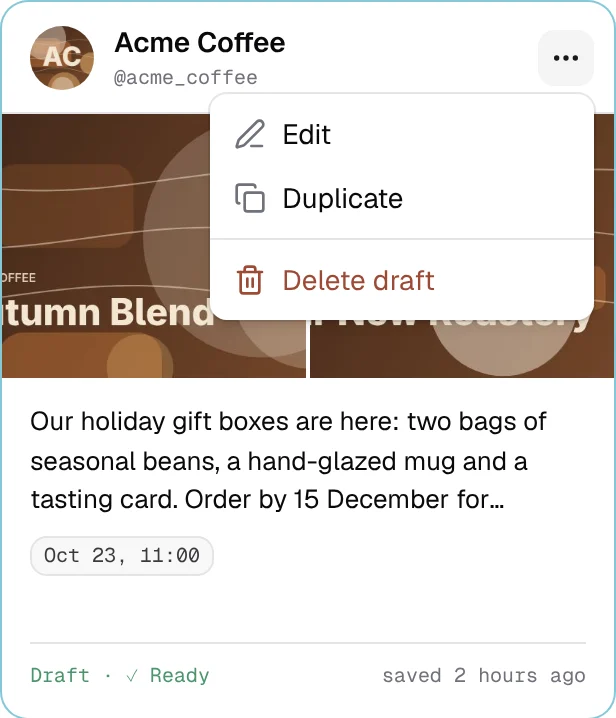
Press the ⋯ button on a card:
- Edit opens the draft.
- Duplicate makes a copy straight away.
- Delete draft removes it. Changed your mind? Press Undo in the message that pops up.
Good to know
- Nothing goes out by accident. A draft stays here until you schedule it or send it.
- Times are shown in your own time zone, the one your computer uses.
- Team members who aren't admins can look at every draft but can't change anything.
- Scheduled, Repeats and Sent have the same search, channel picker and cards as this page.
- Your AI assistant can write drafts. With the Creator tools connector, Claude or ChatGPT saves a draft here for you to check before it goes out.