 Statiko Docs
Channels
Connect your Telegram channels so Statiko can post to them, and set up how each one looks and sounds.
Before Statiko can post for you, it needs your Telegram channels, and Channels is where you connect them. Statiko posts through a Telegram bot that belongs to you: you make the bot once, add it to Statiko, and make it an admin of each channel you want to post to.
You'll find it under Channels in the menu on the left. The page has two tabs: Channels and Bots.
Make your bot
A bot is a small Telegram account that can post for you. You make one with BotFather, Telegram's own tool for making bots. It takes a minute:
- Go to the Bots tab and press Add a bot (Add bot once you have one).
- Press Open @BotFather to open it in Telegram, or search for
@BotFatherthere. - Send it
/newbot. It asks for a name, then a username that ends inbot. - BotFather sends back a long code called a token. Copy the whole line, paste it into Bot token and press Add bot.
The bot stays yours. If you ever revoke it in BotFather, Statiko stops posting straight away.
Connect a channel
- On the Channels tab, press Connect a channel.
- In Telegram, open your channel, go to Administrators → Add admin and pick your bot.
- Leave Post messages switched on and save.
- Back in Statiko, your channel shows up under Detected via bot within a few seconds. Press Add next to it.
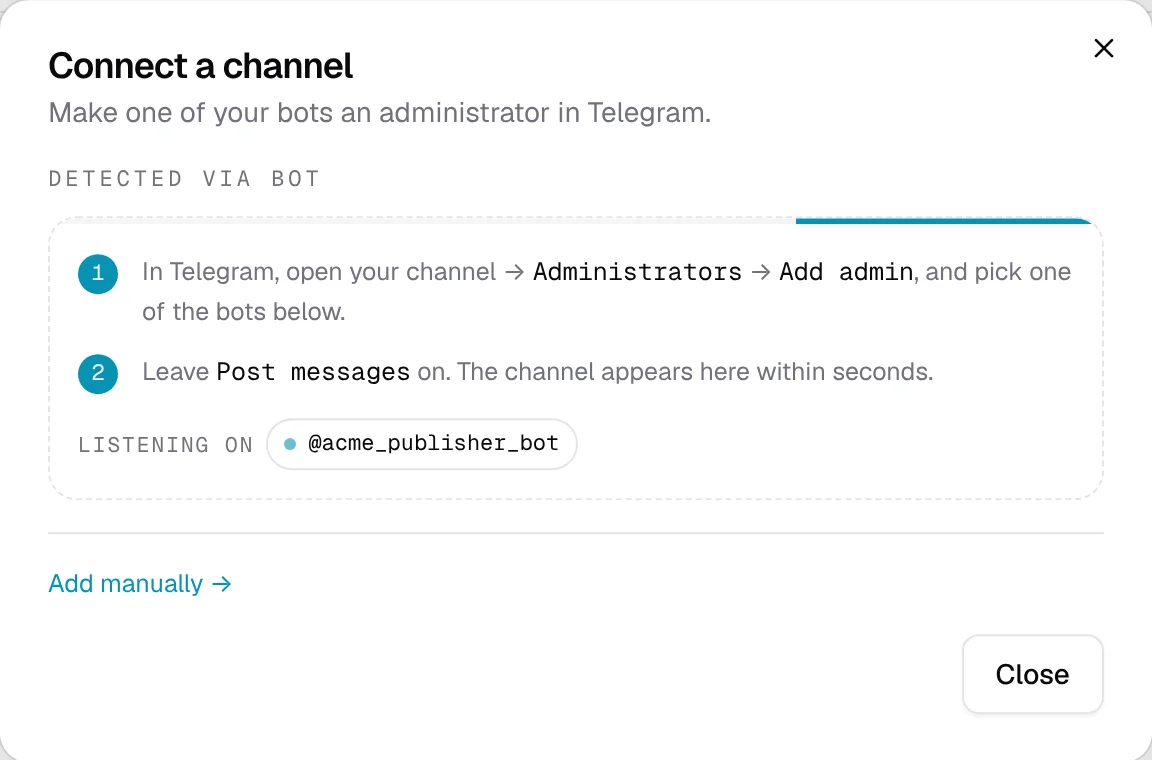
Channel not showing up? You can type it in yourself, see More details.
See how your channels are doing
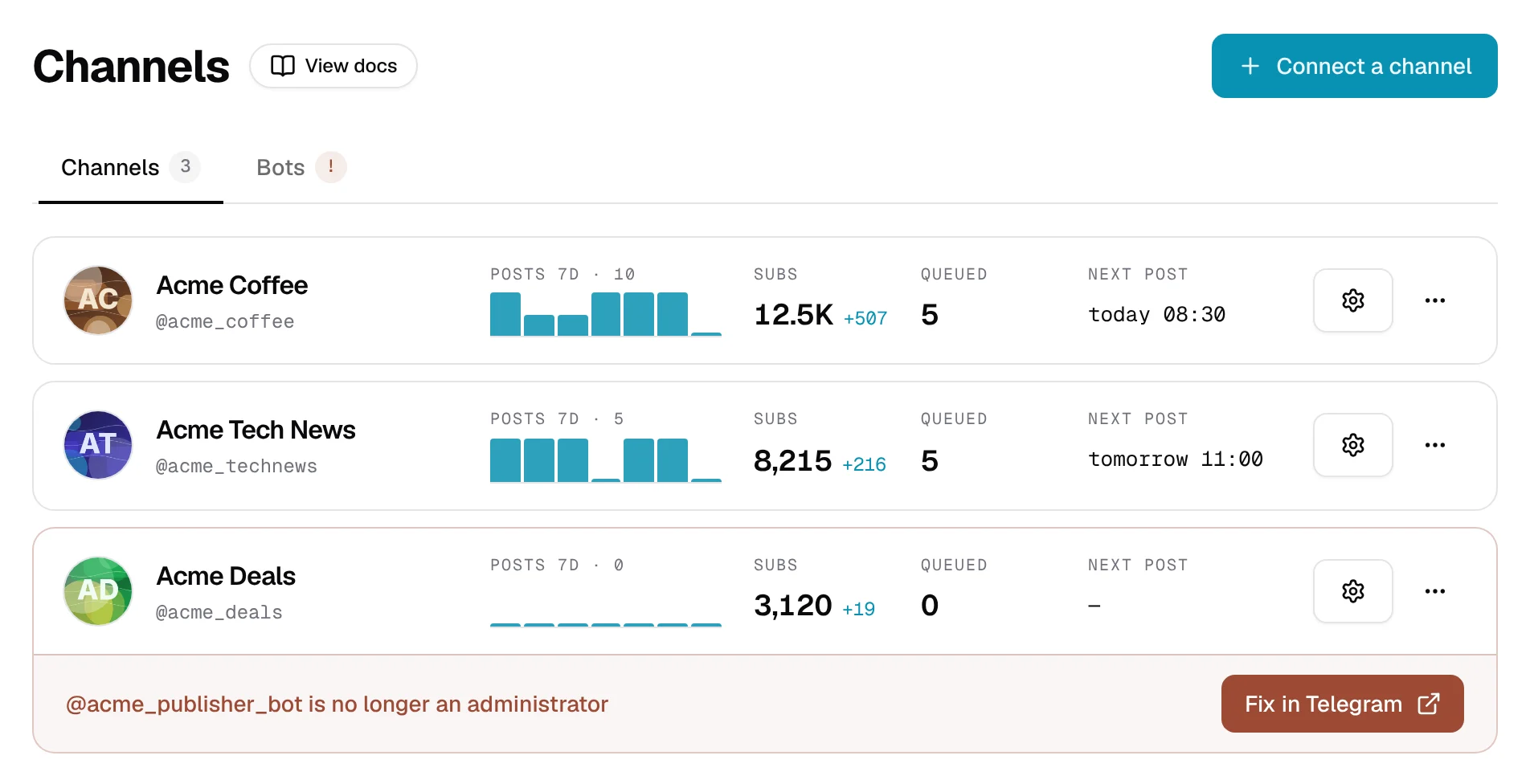
Each channel has its own row with its last 7 days at a glance:
| Column | What it tells you |
|---|---|
| Posts 7D | How many posts Statiko sent each day this week. |
| Subs | How many subscribers you have now, and how many you gained or lost. |
| Queued | Posts waiting to go out, including ones that go out regularly. |
| Next post | When the next one goes out. |
Click a channel's name to see its numbers in Analytics, or press Settings to set it up.
When something's wrong with a channel
A channel with a problem has a red outline and tells you what's up:
- @yourbot is no longer an administrator: someone removed your bot from the channel's admins in Telegram, or took away its rights. Press Fix in Telegram and make it an admin again.
- Publishing paused by you: you switched the channel off. Nothing goes out until you press Resume publishing.

More things you can do with a channel
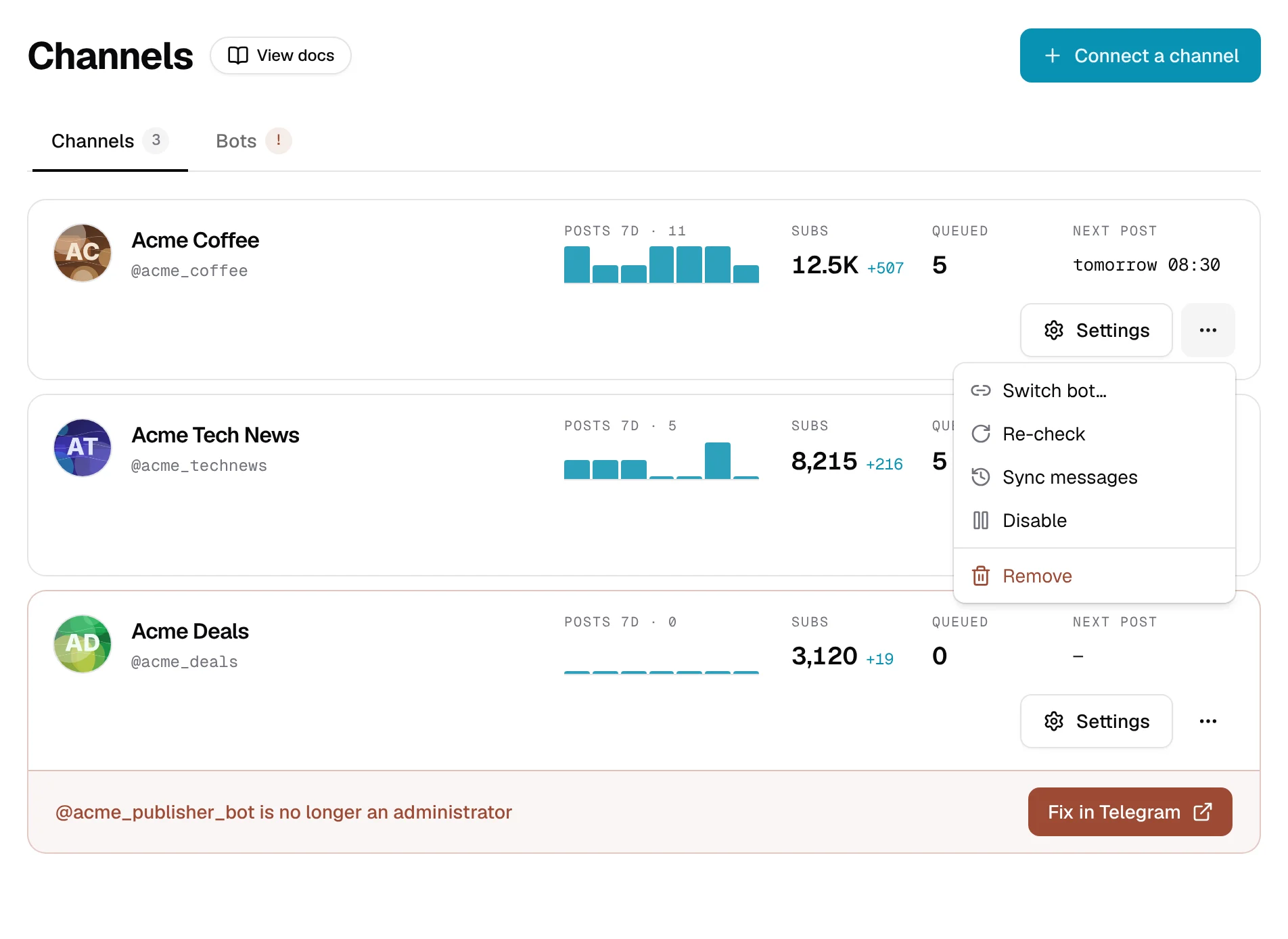
Press the ⋯ button on a channel's row to open its Channel actions.
| Button | What happens |
|---|---|
| Switch bot… | Posts through a different one of your bots. Your posts and history stay. |
| Re-check | Asks Telegram again for the channel's name, photo, subscribers and bot rights. |
| Sync messages | Brings in posts you published straight in Telegram, so your history is whole. |
| Disable | Stops posting to this channel for now. Enable turns it back on. |
| Remove | Disconnects the channel from Statiko (see below). |
Set up each channel
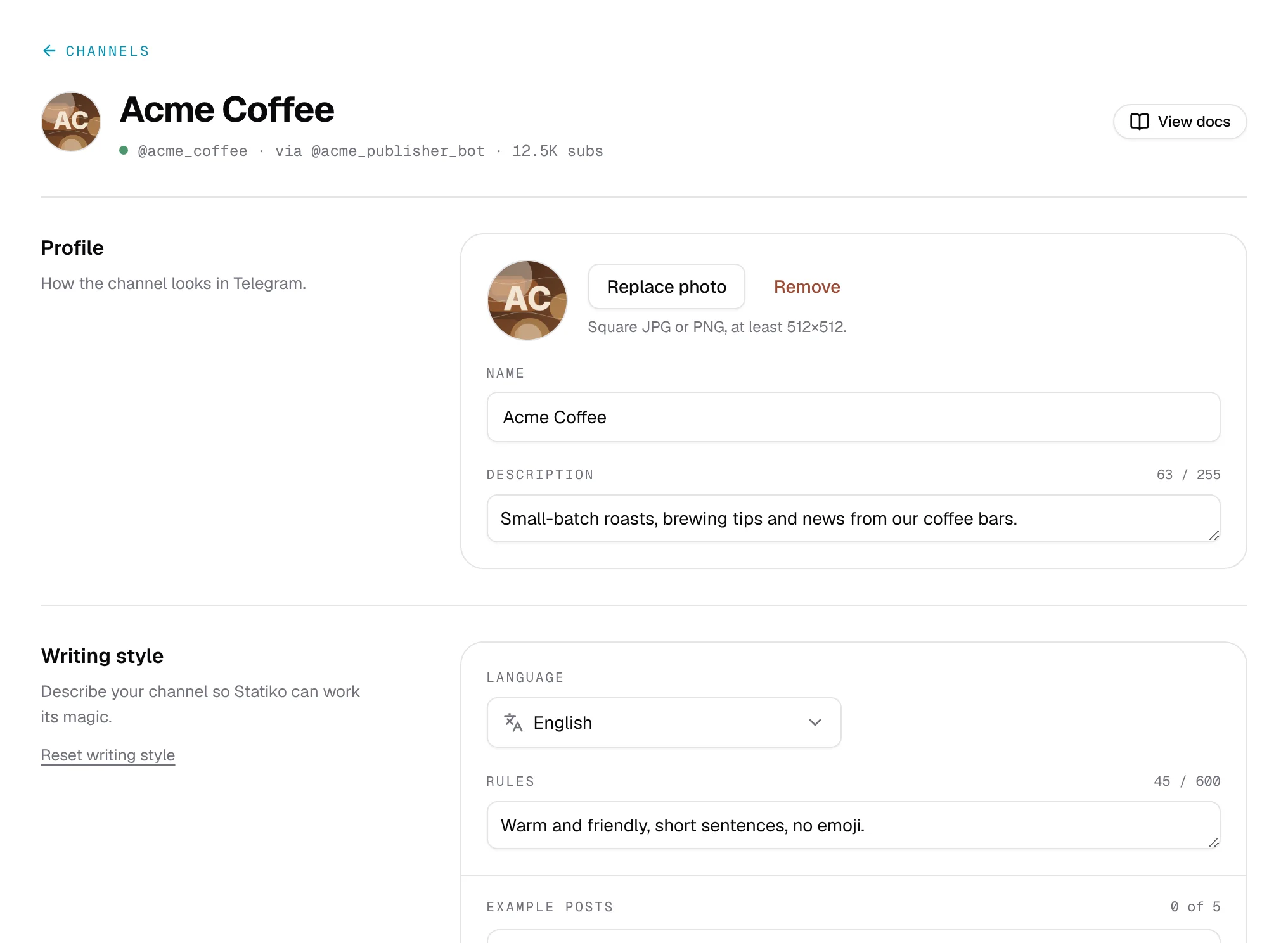
Press Settings on a channel's row. The top of the page shows whether the channel is working and which bot it uses. Change what you like, then press Save changes in the bar at the bottom, or Discard to undo your changes.
Profile
The channel's Name, Description and photo. Whatever you change here changes in Telegram too.
Writing style
Tell Statiko how your channel writes, so the drafts Radar prepares for you sound like you. Pick the Language, add a few Rules (for example "One short line under each image. No links.") and paste a few Example posts.
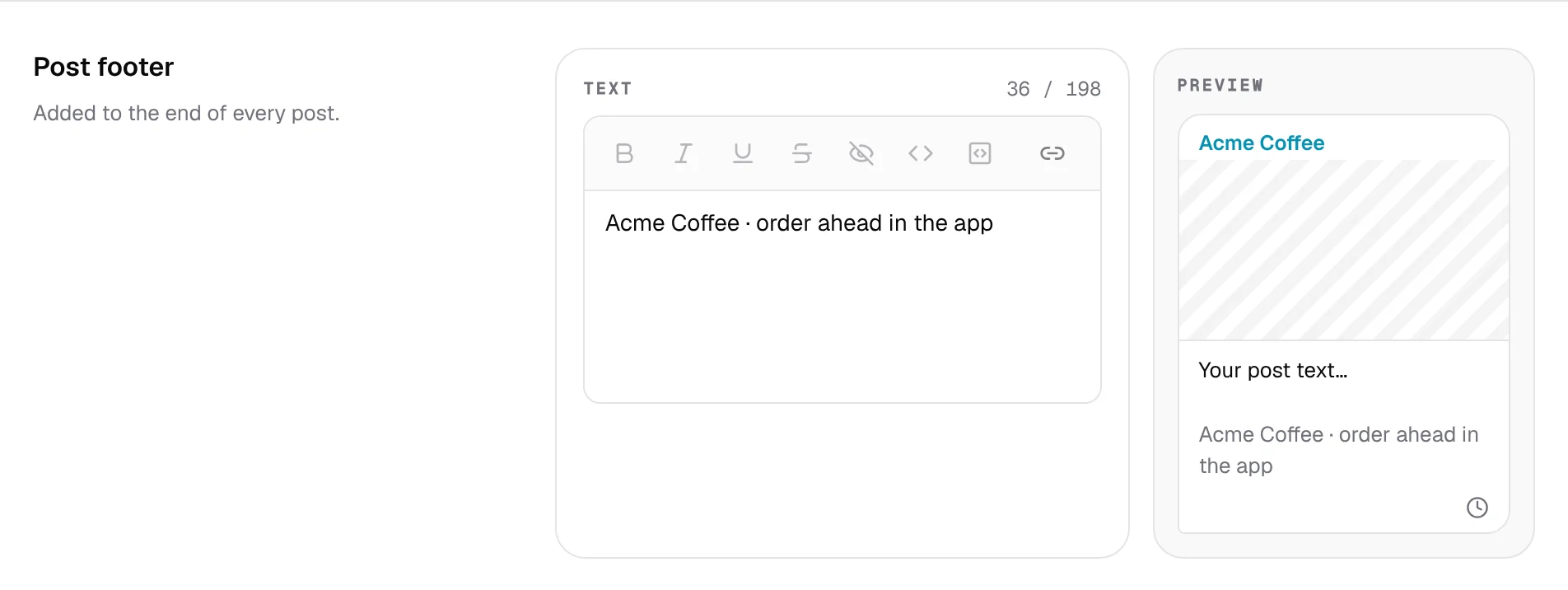
Post footer
A bit of text added to the end of every post in this channel, like a signature. You see a preview as you type.
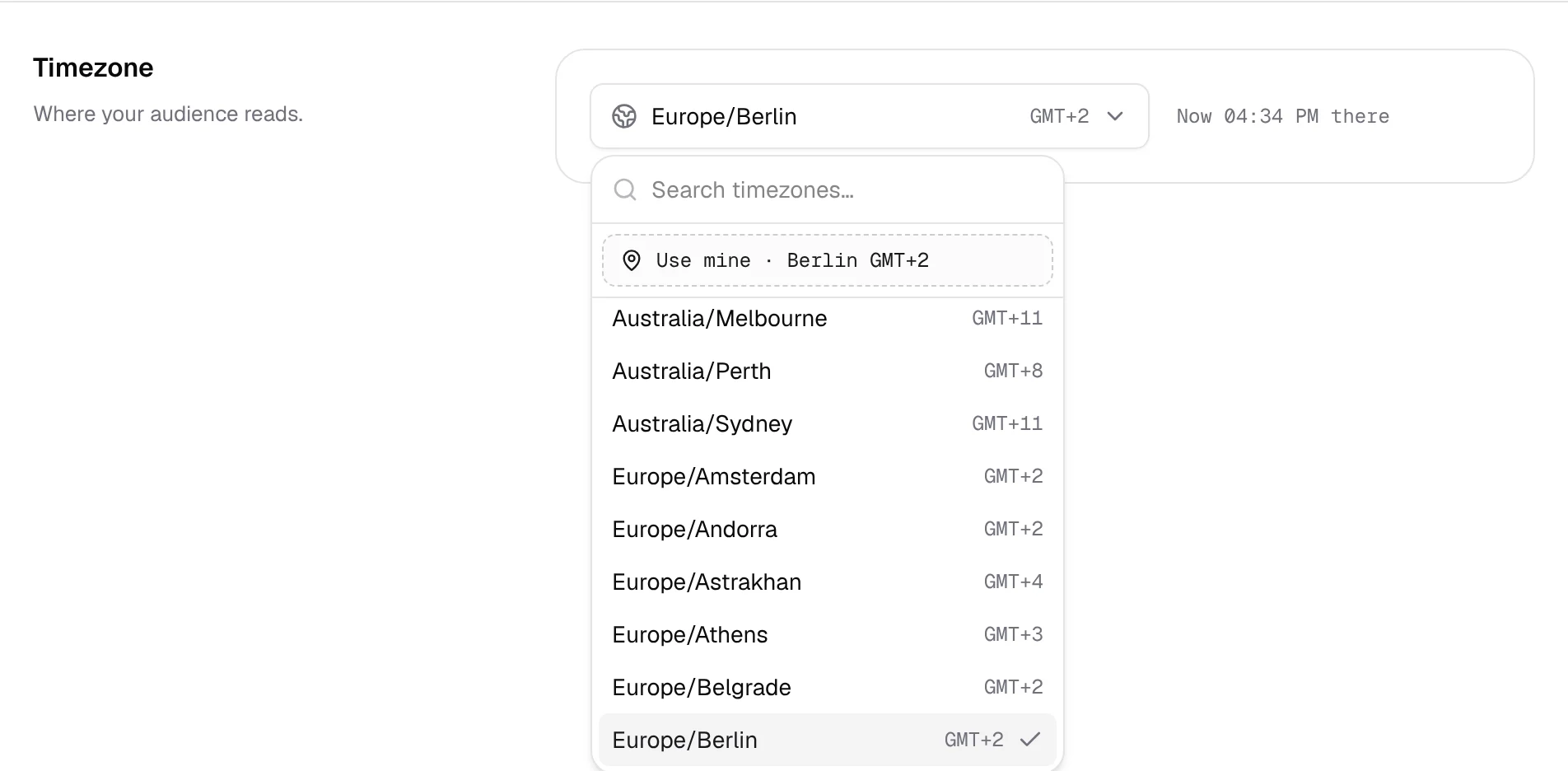
Timezone
Where most of your readers live, so your posts go out at the right time for them. Search for a place, or press Use mine to use your own.
Check on your bots
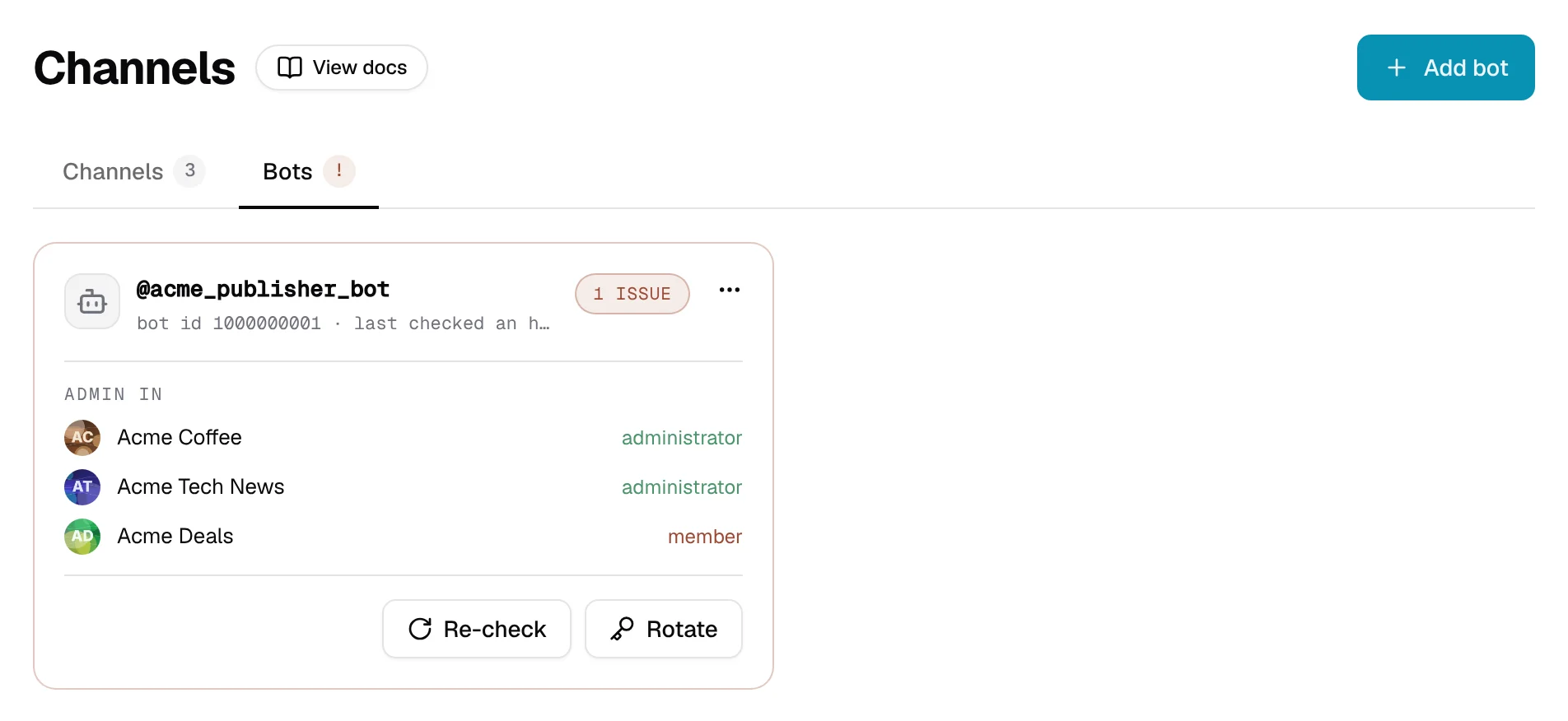
The Bots tab lists your bots, the channels each one is Admin in, and a label:
| Label | What it means |
|---|---|
| Healthy | All good: the bot works and is an admin everywhere it should be. |
| 1 issue, 2 issues | The bot is no longer an admin in that many channels. Make it an admin again in Telegram. |
| Token refused | Telegram doesn't accept the bot's token any more, usually because it was revoked in BotFather. Press Paste a new token to fix it. |
Disconnect a channel
Open the channel's Settings and press Disconnect channel at the bottom, or pick Remove in its ⋯ menu. Your channel and everything already sent stay just as they are in Telegram.
If posts are still waiting to go out to that channel, you'll need to cancel them first.
Good to know
- Only owners and admins can connect, change or remove channels and bots. Other team members can look around, but they see Ask an admin to connect channels instead of the buttons.
- One bot is enough. The same bot can post to all your channels.
- Posts you publish straight in Telegram only show up in Statiko after you use Sync messages.