 Statiko Docs
Media library
Keep your photos, videos and files in one place, and reuse them in any post.
Upload a photo, video or file to the Media Library once, and you can add it to as many posts as you like, including drafts and posts that go out regularly.
You'll find it under Media → Library in the menu on the left. The menu also shows how many files are in the library and in the trash.
Add photos and videos
- Press Upload in the bottom-right corner, or drag files from your computer onto the page.
- They go into the folder you have open. While you drag, the page shows where they'll land.
- A small panel shows how the upload is going. You can carry on working while it runs.
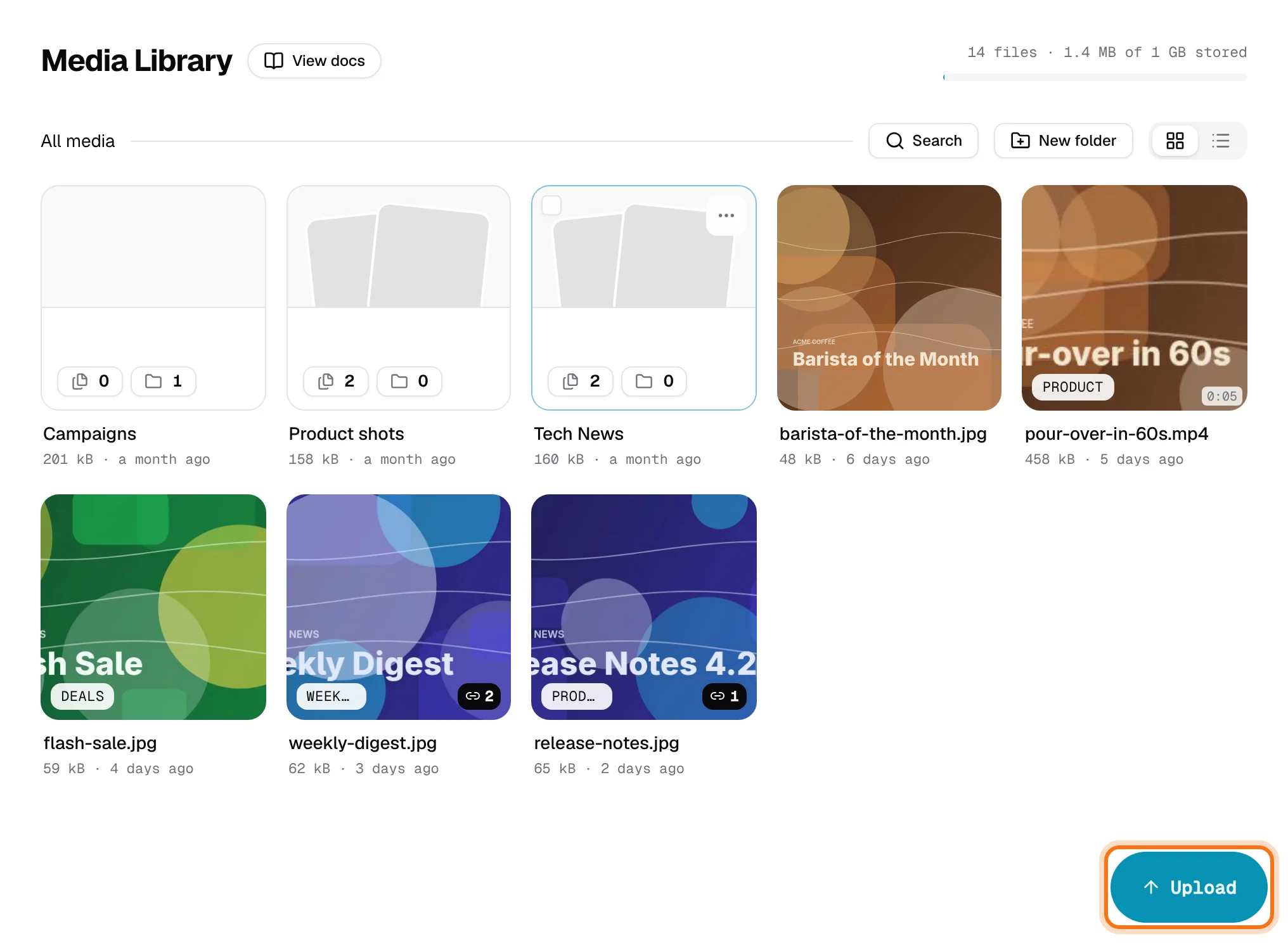
You can upload pictures, videos, GIFs, PDFs and ZIP files. If something goes wrong, the upload panel tells you what to do (see More details).
Keep things tidy with folders
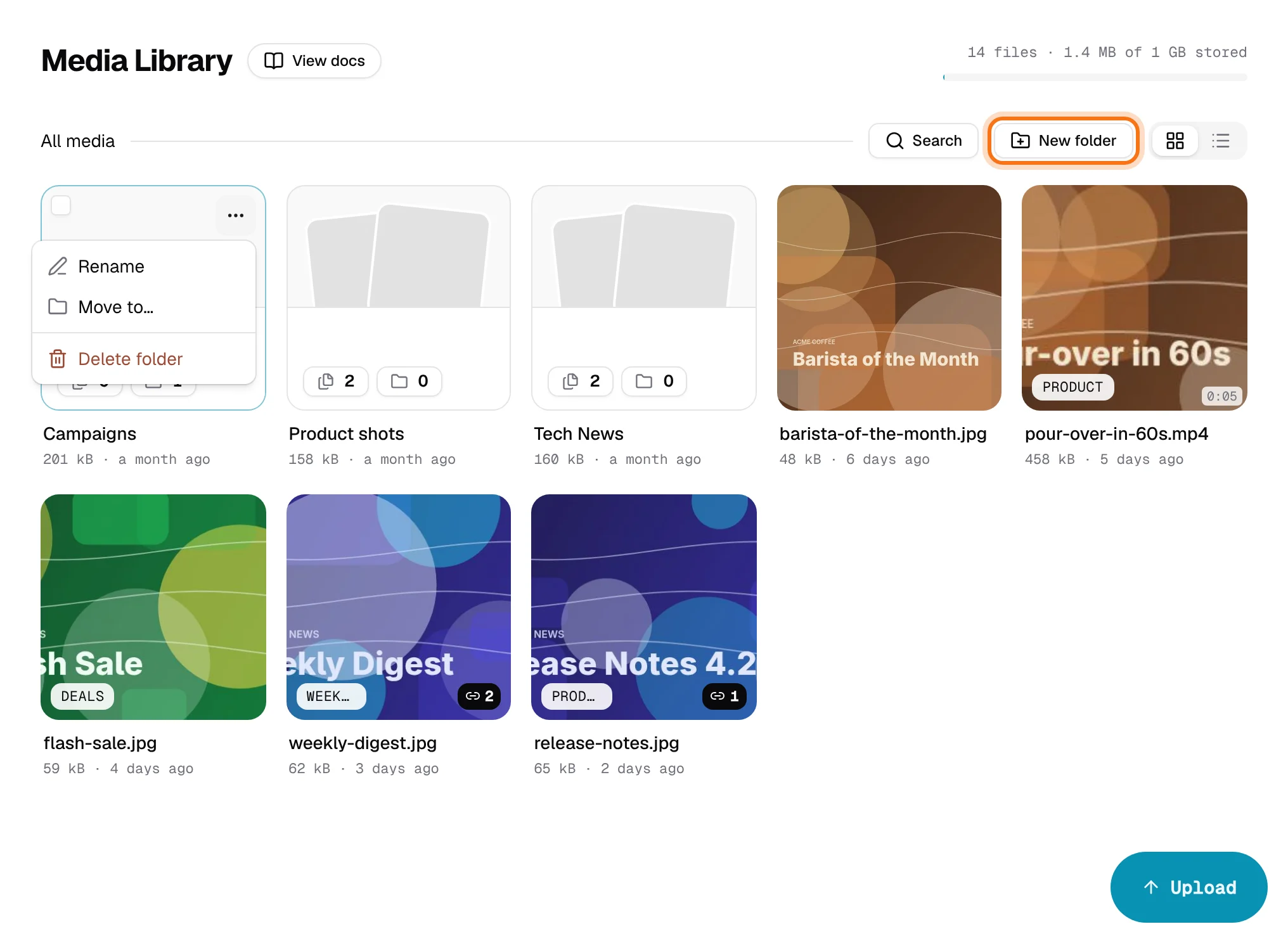
- Make a folder: press New folder, type a name and press Enter.
- Open a folder: double-click it. To go back, click All media in the path above your files.
- Rename, move or delete a folder: press its … button and choose Rename, Move to… or Delete folder.
- Move files: drag them onto a folder.
Pick files and do something with them
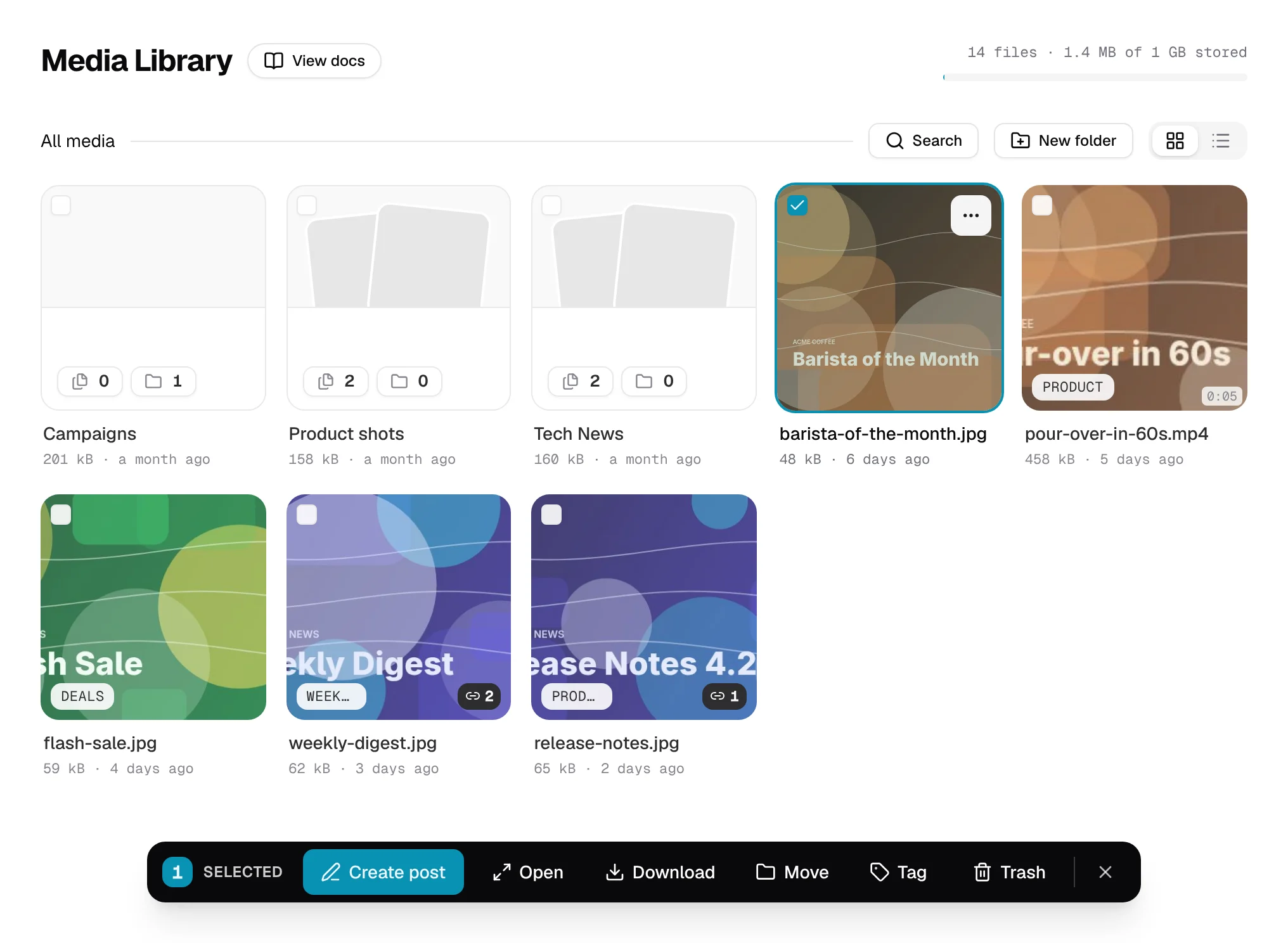
Click a file to select it. Hold Ctrl (Cmd on a Mac) and click to pick several.
When you've picked something, a bar appears at the bottom of the page. From there you can Create post with those files, Move them to a folder, Tag them, or put them in the Trash.
Every file also has its own … button with the same choices.
Find a file
Press Search and type part of the file's name in Search filenames…. You can also narrow the list by Type (photos, videos and so on) or by Tag. Press Clear all to see everything again.
Look at a file and add notes
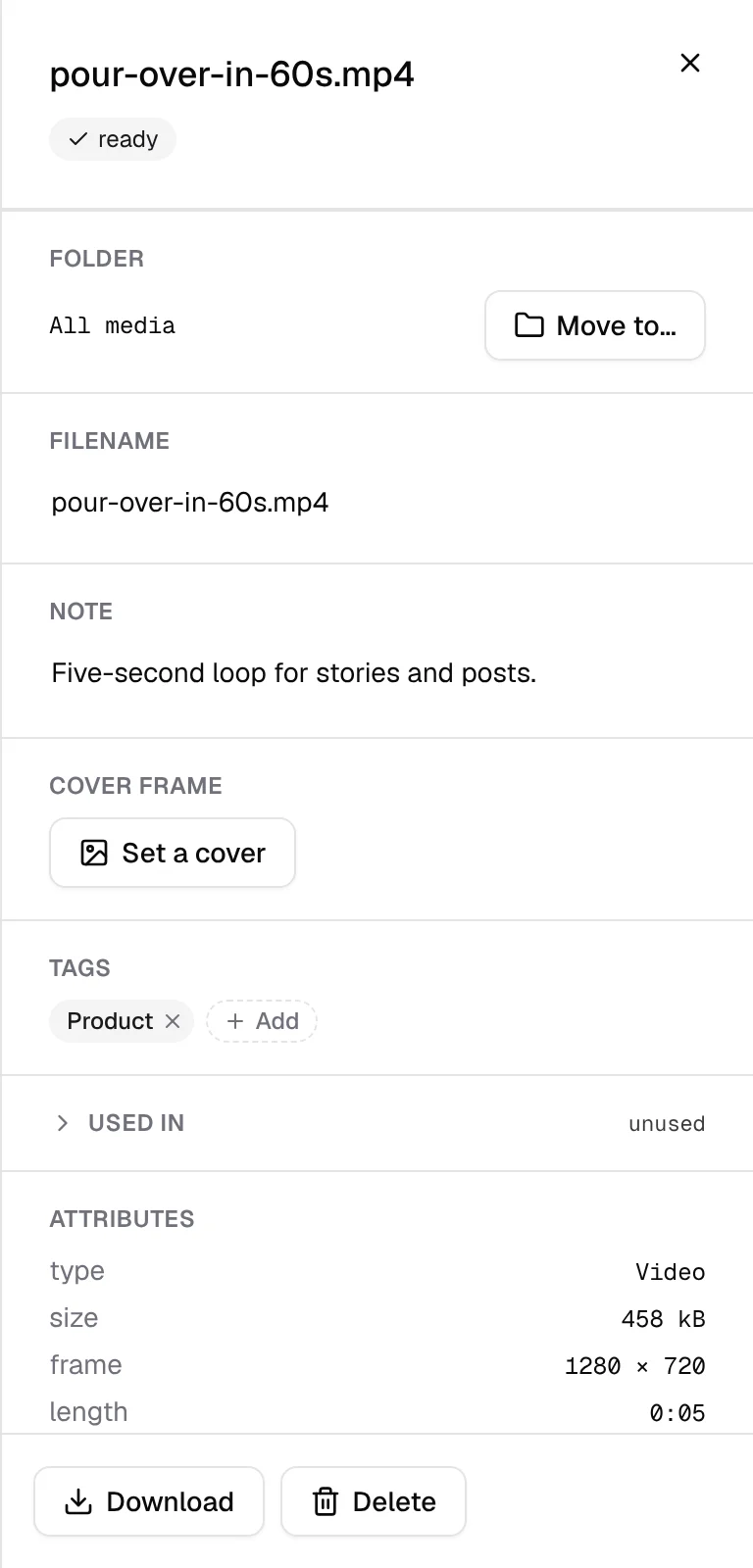
Double-click a file to open its details in a panel. There you can:
- change its Filename or add a Note (click to type; it saves when you click away),
- add Tags to find it more easily later,
- see under Used in which posts use it, and click one to open it.
Change a video's cover picture
Every video has a cover: the still picture Telegram shows for it in your channel's media. Statiko picks one for you when it uploads. To choose another:
- Open the video and find Cover frame.
- Press Set a cover, choose a moment from the video, then press Save cover.
- Or press Use an image instead to use a picture (JPEG, PNG or WebP).
Use your files in a post
- Pick up to 10 files that have finished uploading and press Create post. A new post opens with them attached. Ten is the most Telegram allows in one post.
- Or, while writing a post, press Add under Media and choose Upload from computer, Browse library… or a file from Recent. Anything you upload there is saved to the library too.
The text of the post goes with the first file. Drag the files to change their order.
Check how much space you have
Next to the page title you'll see how many files you have and how much of your space they use. It turns amber with Almost full when you're running low, and red when it's full.
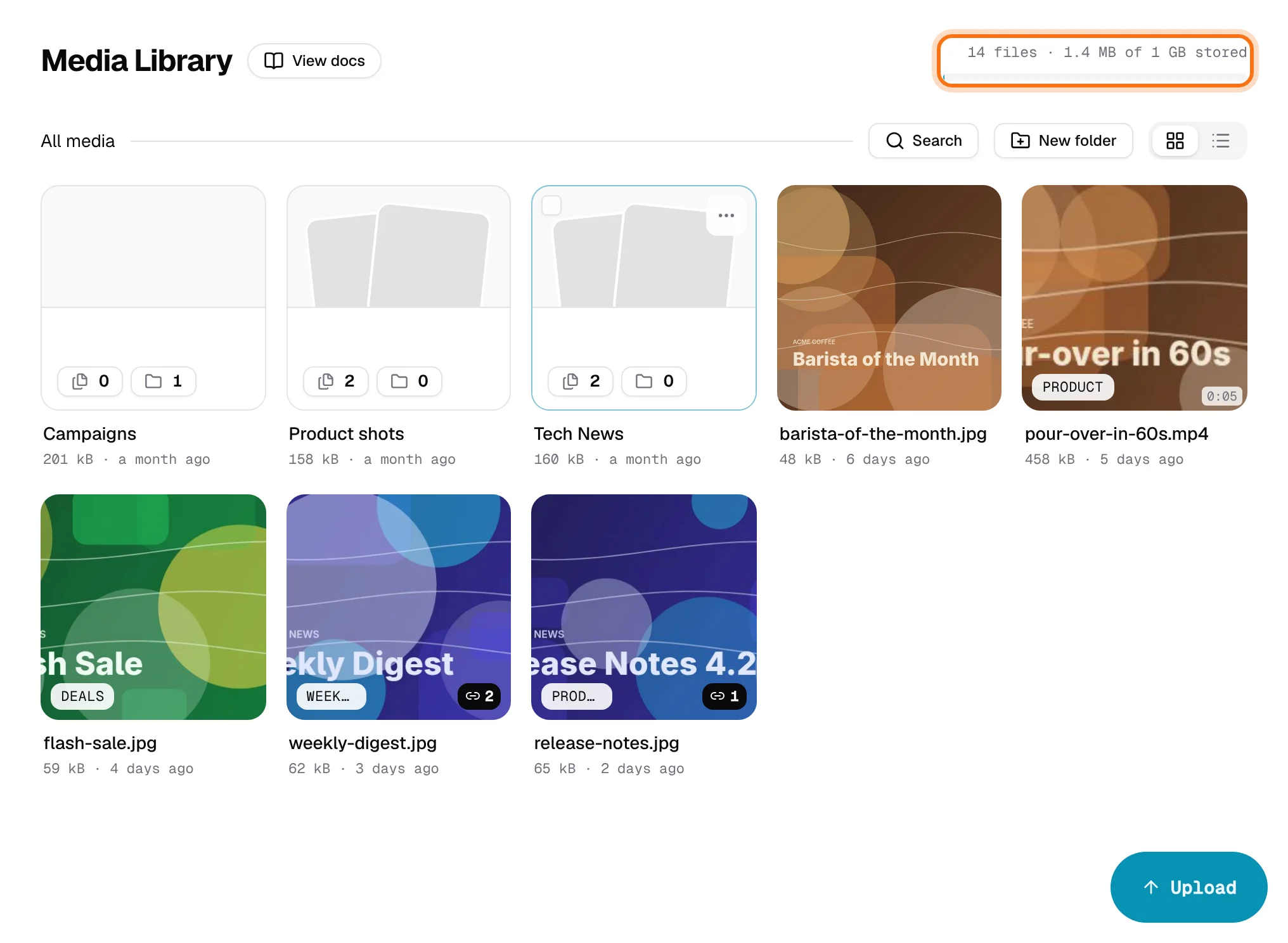
To make room, delete files you no longer need and empty the trash.
Get back a deleted file
Files you delete go to the trash first, so you can change your mind. Open it from Media → Trash in the menu on the left.
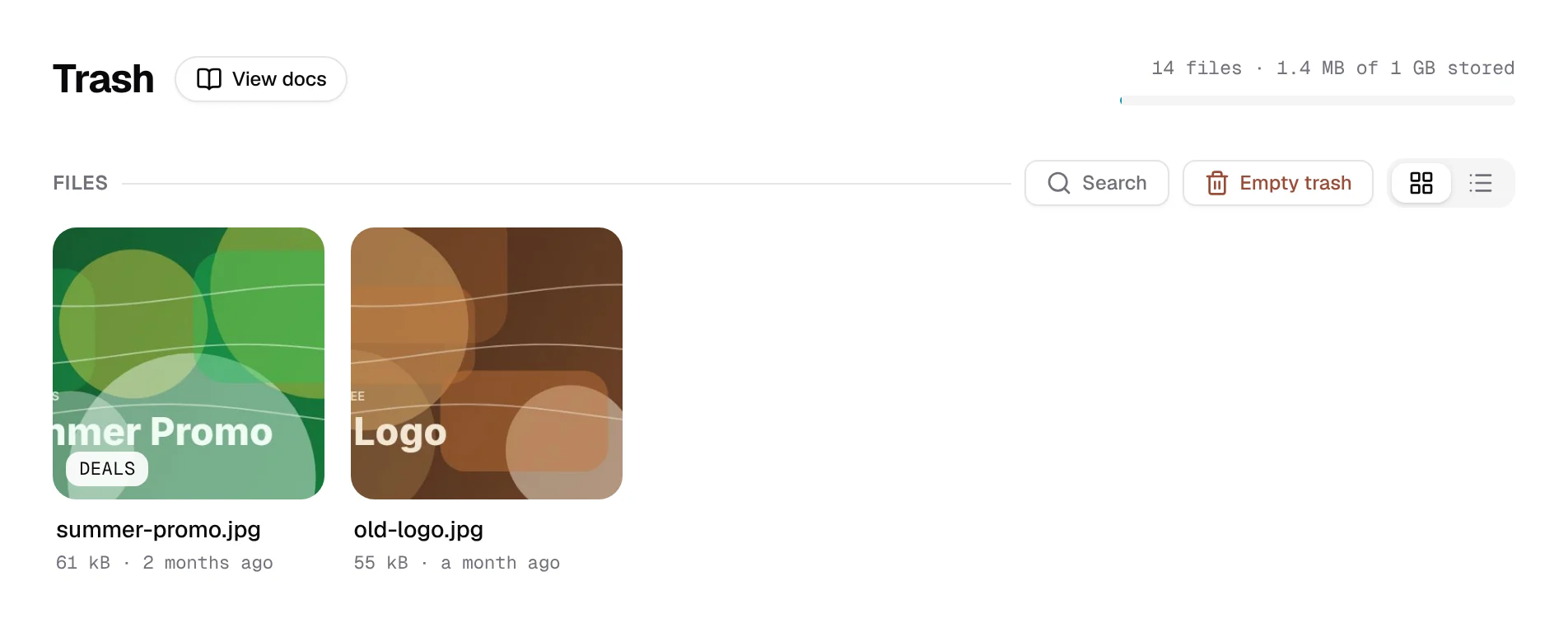
- Restore puts the picked files back in the library.
- Delete removes them for good (you'll be asked to confirm).
- Empty trash removes everything in the trash for good.
Good to know
- Files in the trash still use up your space until they're deleted for good.
- A file a planned post still needs can't be deleted. If a planned post, or a regular post that's still running, uses it, it stays put and shows Used in.
- Search looks through the whole library, not just the folder you have open.
- Deleted for good means gone. You can't get it back, and no planned post can use it.
- Your AI assistant can tidy up. With the Creator tools connector, it can add images from a link, sort files into folders and move them to the trash.