 Statiko Docs
Radar
Pick websites to watch for each channel, and turn their new articles into drafts.
Think of Radar as a news scout for your channels. You tell it which websites to watch, it collects their new articles in one place, and it helps you turn the good ones into posts written in your channel's style. It can even write the drafts on its own.
You'll find it under Radar in the menu on the left.
Before you start
You need at least one Telegram channel connected. If you haven't done that yet, press Connect a channel, or read Channels first.
See what Radar is watching
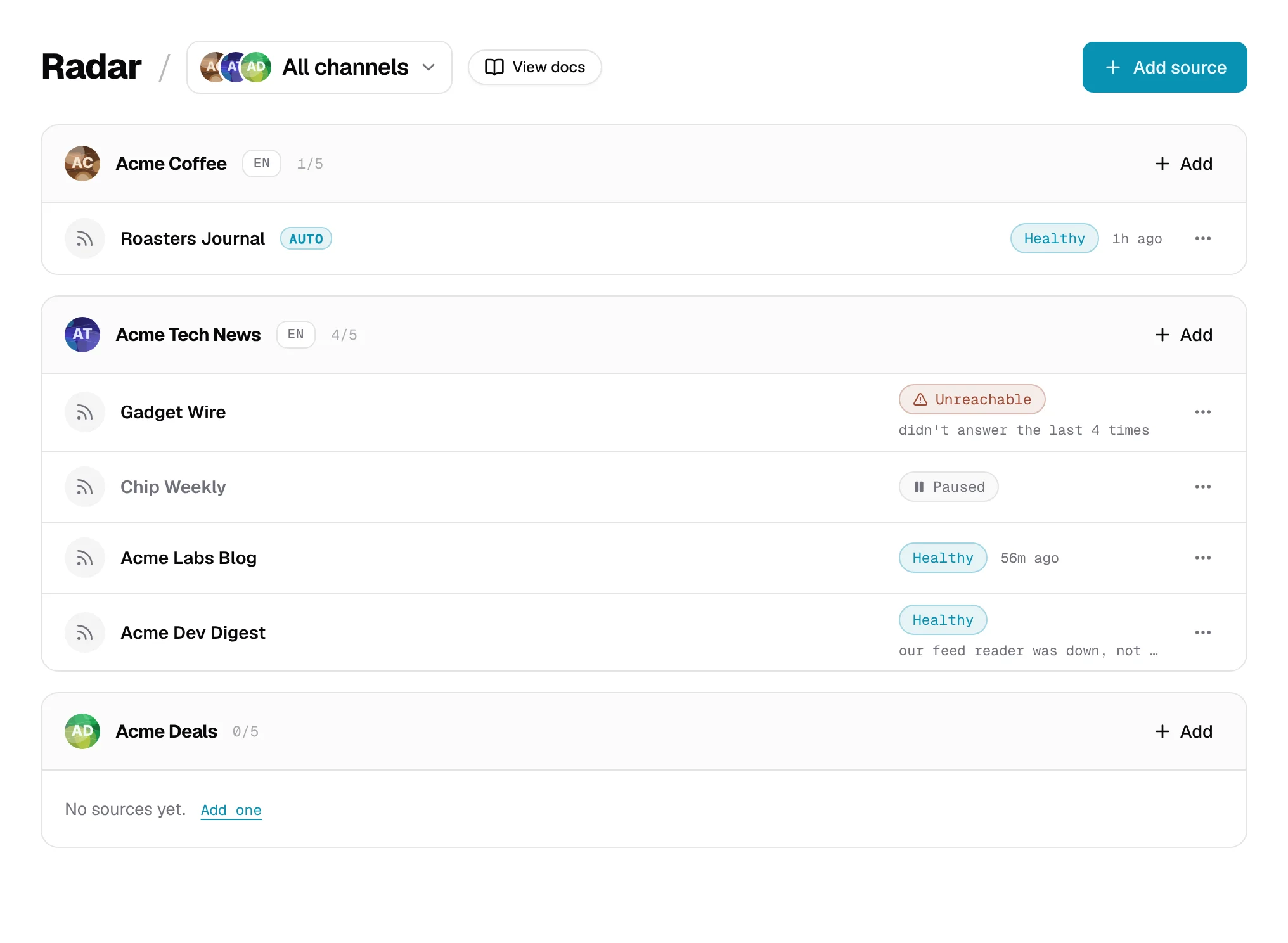
Radar lists the websites it watches (it calls them sources) under the channel they belong to. To see just one channel, click All channels next to the page title and pick it.
Each website shows a label so you know it's working:
| Label | What it means |
|---|---|
| Healthy | All good. You can see when Radar last looked. |
| Not checked yet | Just added. Radar takes its first look within a minute or so. |
| Checking | Radar is looking at the website right now. |
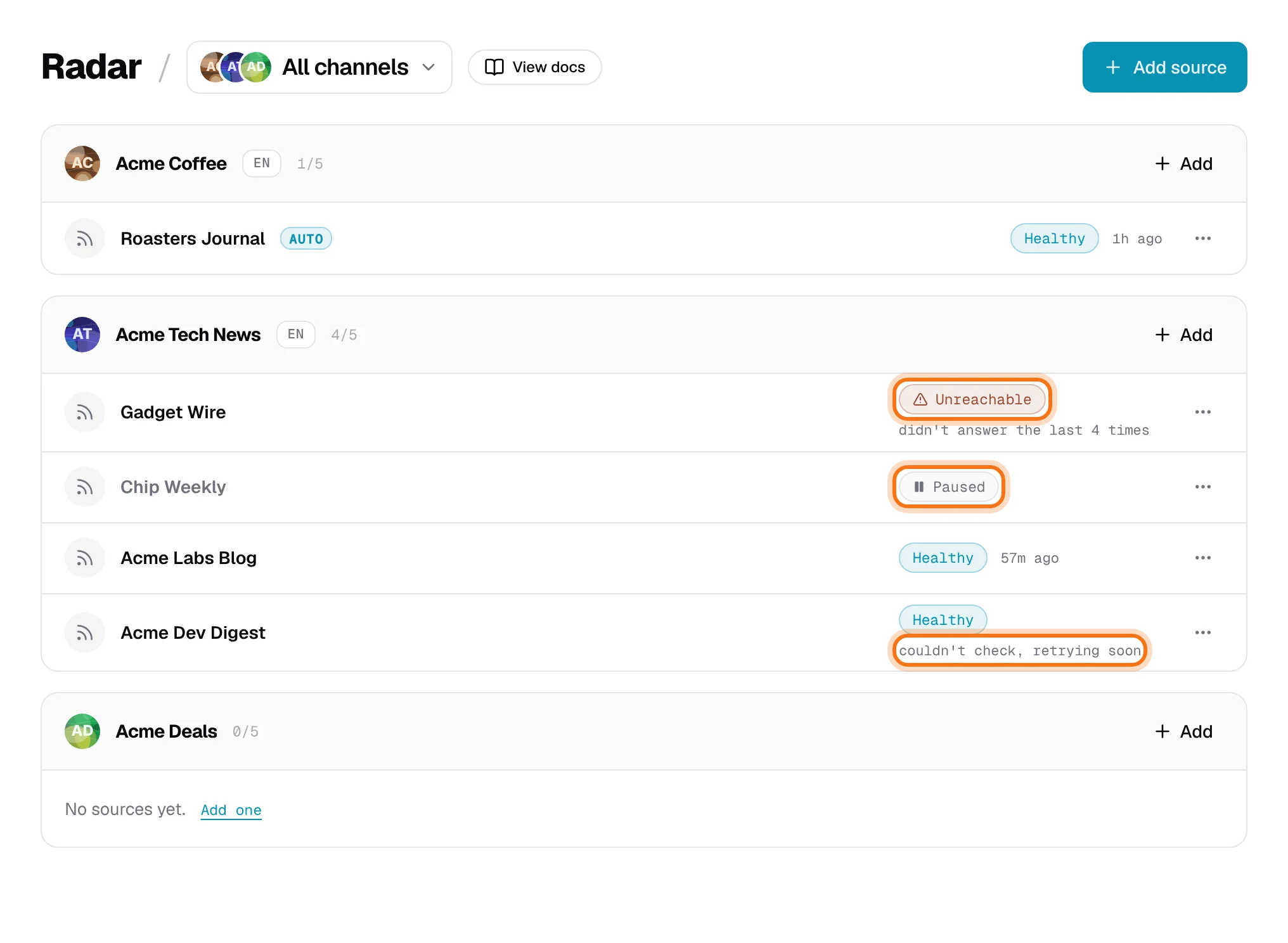
| Unreachable | Radar couldn't read it last time. The row says why. |
| Paused | You paused it. Radar won't look until you start it again. |
Sometimes a Healthy row says couldn't check, retrying soon. The problem was on our side, not the website's. Radar tries again on its own, and the website doesn't turn Unreachable because of it.
Add a website to watch
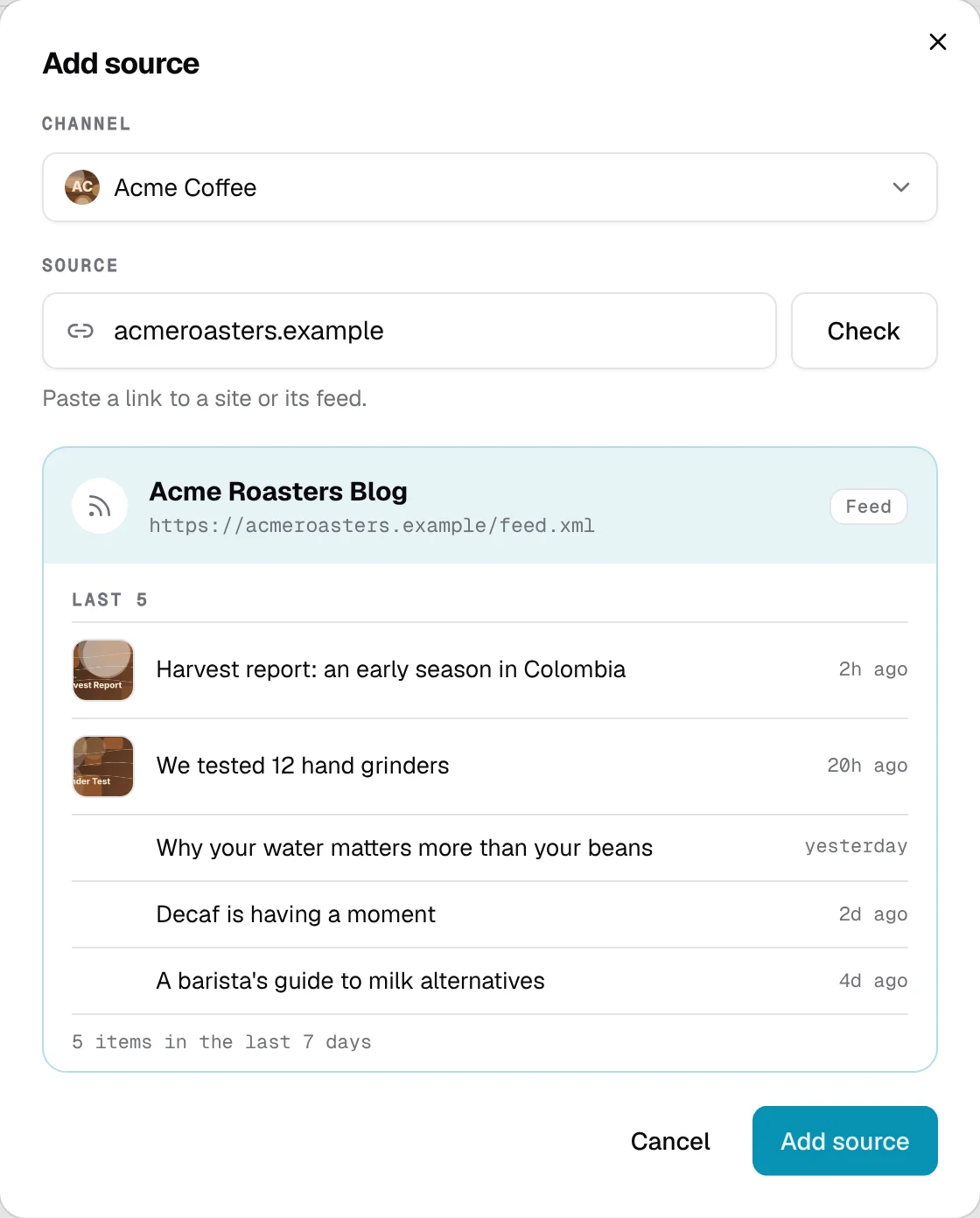
- Press Add source at the top of the page, or Add next to a channel.
- Choose the Channel.
- Paste the website's address into Source, for example
example.com, and press Check. - Radar shows the website's Last 5 articles. Make sure it's the right one.
- Change the Name if you like. You can also set Style and Create drafts automatically here (see Tell Radar what to pick).
- Press Add source.
Each channel can watch up to 5 websites. If Radar can't add one, it tells you why (see More details).
Read what's new
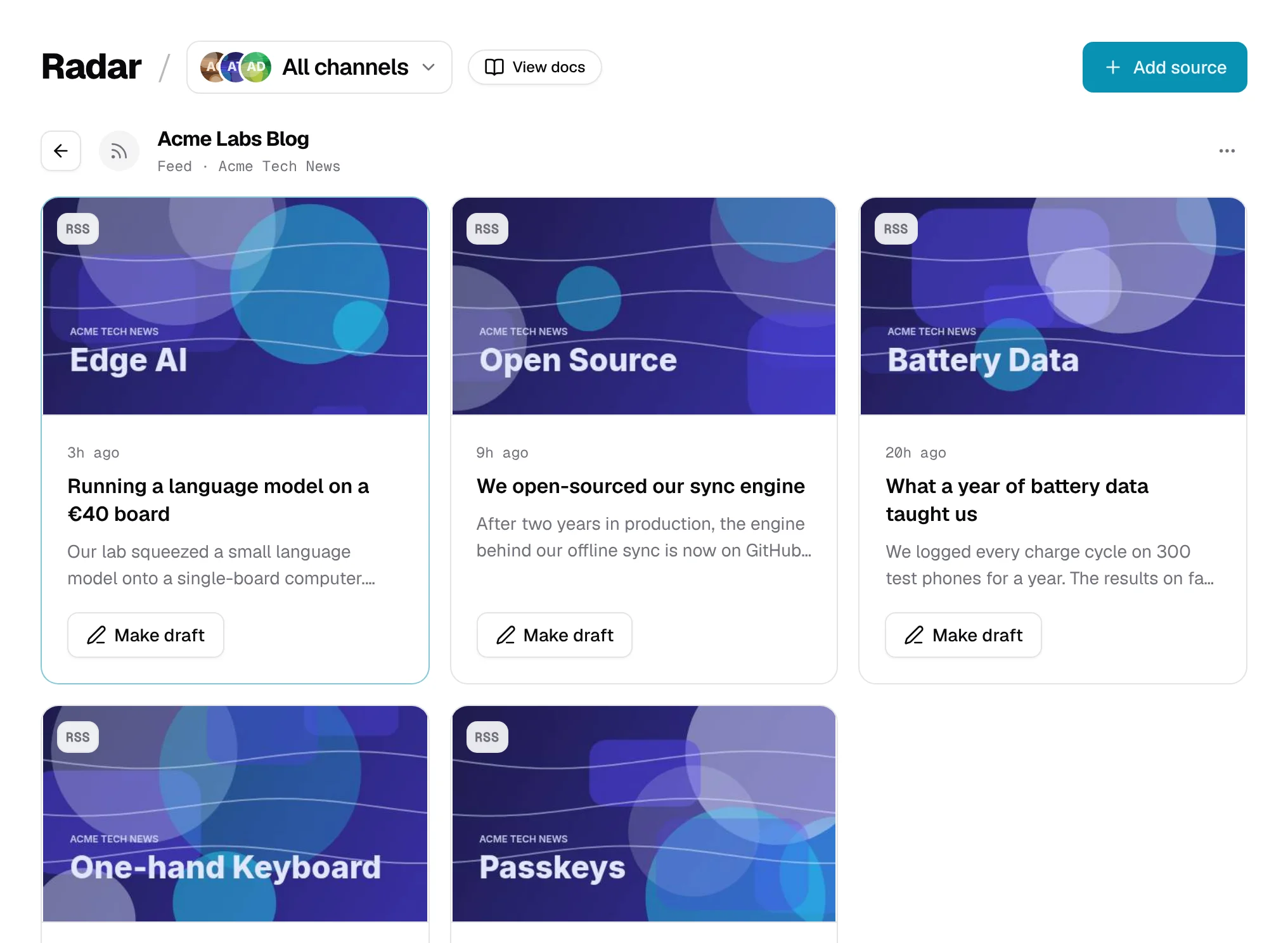
Click a website to see its latest articles, newest first. Click an article to read more, and press Original to open it on the website. Load more shows older articles.
Turn an article into a draft
- Press Make draft on an article. Radar saves a draft for it and opens it in the post editor.
- Find the Source section, between your channels and the Text. Press Generate text.
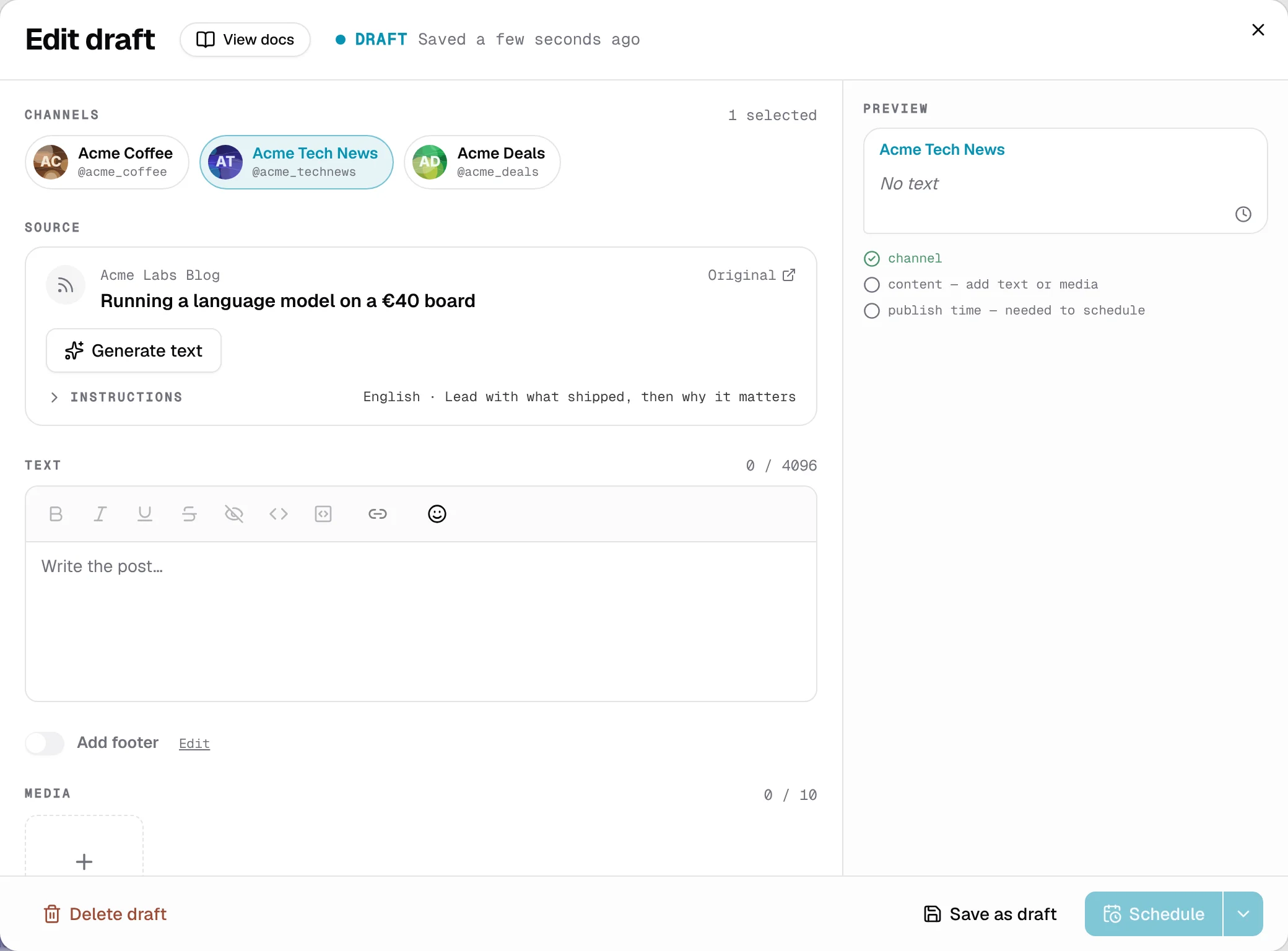
- Radar writes a post about the article in the website's Style. This takes a few seconds, and it replaces what is in Text.
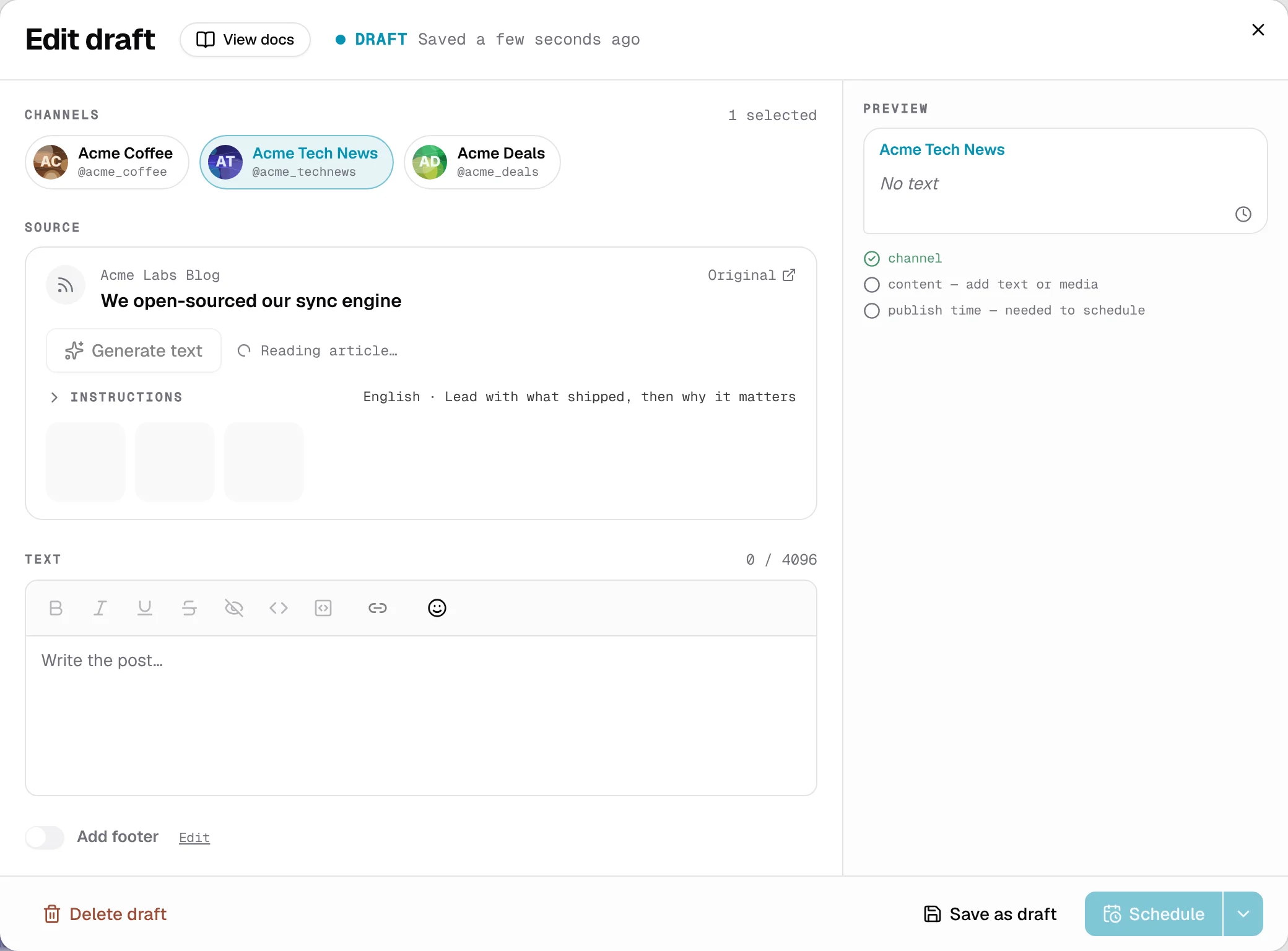
- Change the text as you like, or write it yourself.
- The article's pictures show as small tiles in Source. Click one to add it to the post's Media, and click it again to take it off.
- Plan or send the draft from the editor, or leave it for later.
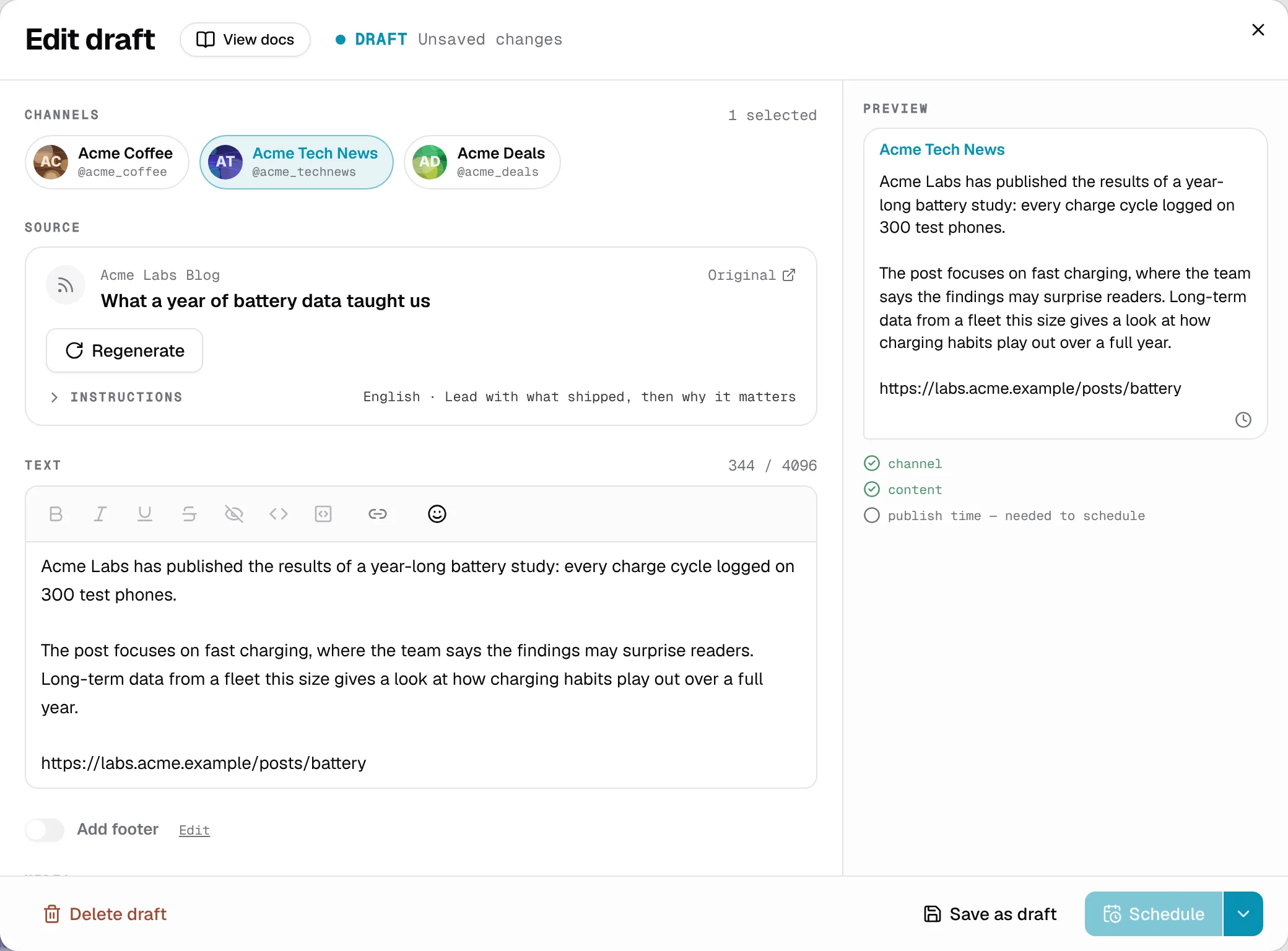
Press Regenerate for a different version. The draft waits in Drafts, where you can plan it or send it like any other. If you close the editor without writing anything, the empty draft stays in Drafts. Delete it there if you don't want it.
Let Radar write drafts for you
Turn on Create drafts automatically for a website, and Radar makes a draft from every new article that fits your filters, without you pressing anything. It writes them the way your Style says. These websites show an Auto label.
Nothing is sent to your channel on its own. The drafts wait in Drafts for you to check.
Tell Radar what to pick
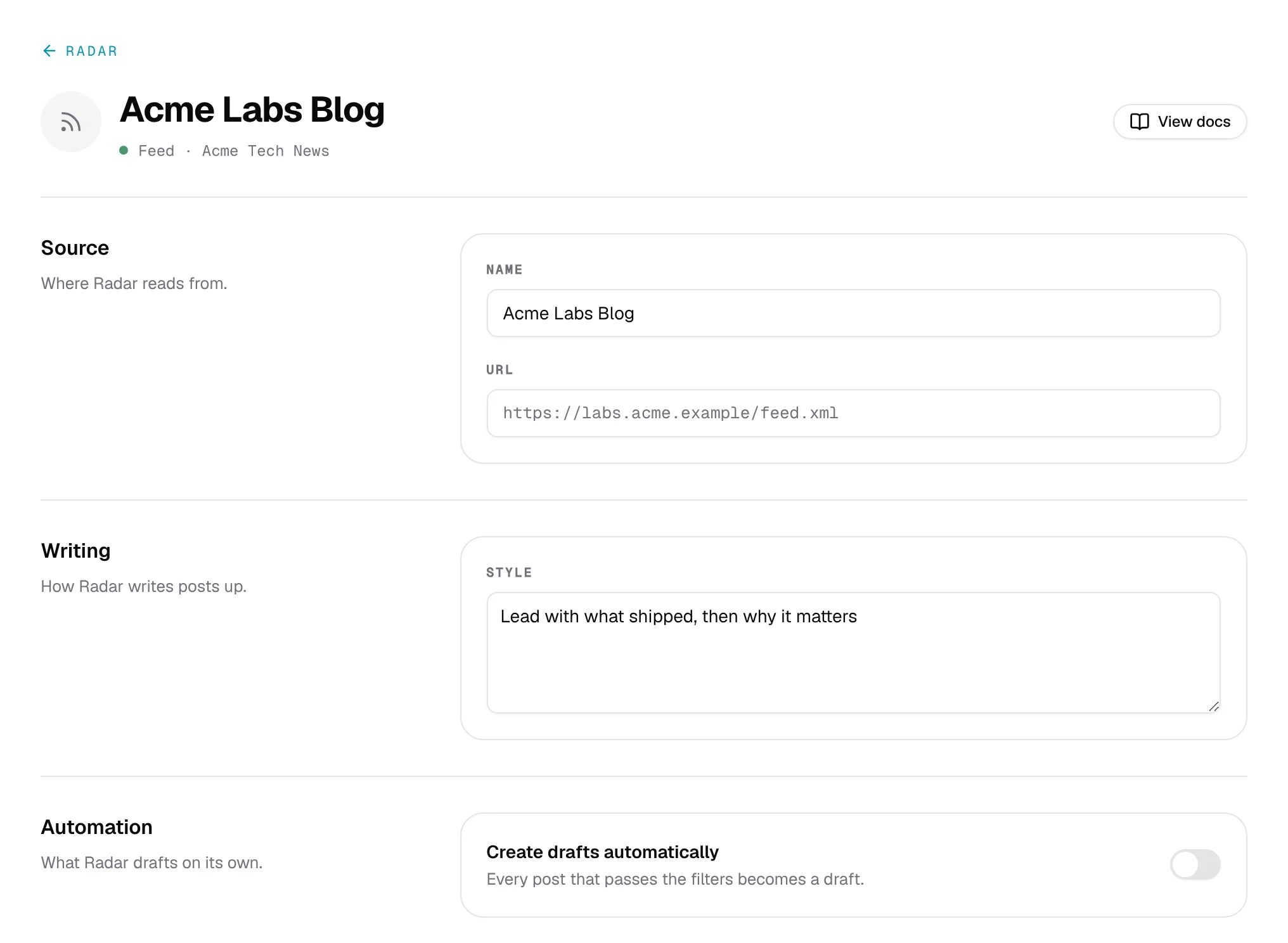
Press the ⋯ button on a website and choose Settings. The page has three parts:
- Source: the Name and the website's address.
- Writing: Style, in your own words: tone, length, format. Radar uses it when you press Generate text and for automatic drafts.
- Automation: the Create drafts automatically switch. When it's on, you can also set:
- Pick: what to draft from this website.
- Skip: what to ignore, even if it fits.
- Blocklist: words or website names. Posts that contain any of them are never drafted. Type one and press Enter.
These filters only decide what Radar drafts on its own. They don't hide anything in the article list, and they don't affect Make draft.
Press Save changes when you're done, or Discard to forget your changes.
Pause or stop watching a website
Press the ⋯ button on a website:
- Pause stops Radar from looking at it for now. Resume starts it again.
- Remove stops watching it for good. Drafts you already made from it stay.
Good to know
- Radar looks at each website every few hours, so new articles don't show up the second they're published.
- Each article can have one draft. Once you've made it, the article shows Edit draft instead.
- Team members who aren't admins can look around but can't change anything. They see Read only.
- Your AI assistant can read Radar. With the Creator tools connector, ask it for today's best items and have it turn one into a draft.