 Statiko Docs
Calendar
One place to see everything you have planned for your channels, and everything that already went out.
The Calendar puts every post on the day it goes out: the ones you have planned and the ones already in your channels. One look tells you how your week is going.
You'll find it under Calendar in the menu on the left.
Before you start
You need at least one Telegram channel connected. If you haven't done that yet, the calendar says See every post on one calendar. Press Connect a channel and follow the steps, or read Channels first.
See your week or your month
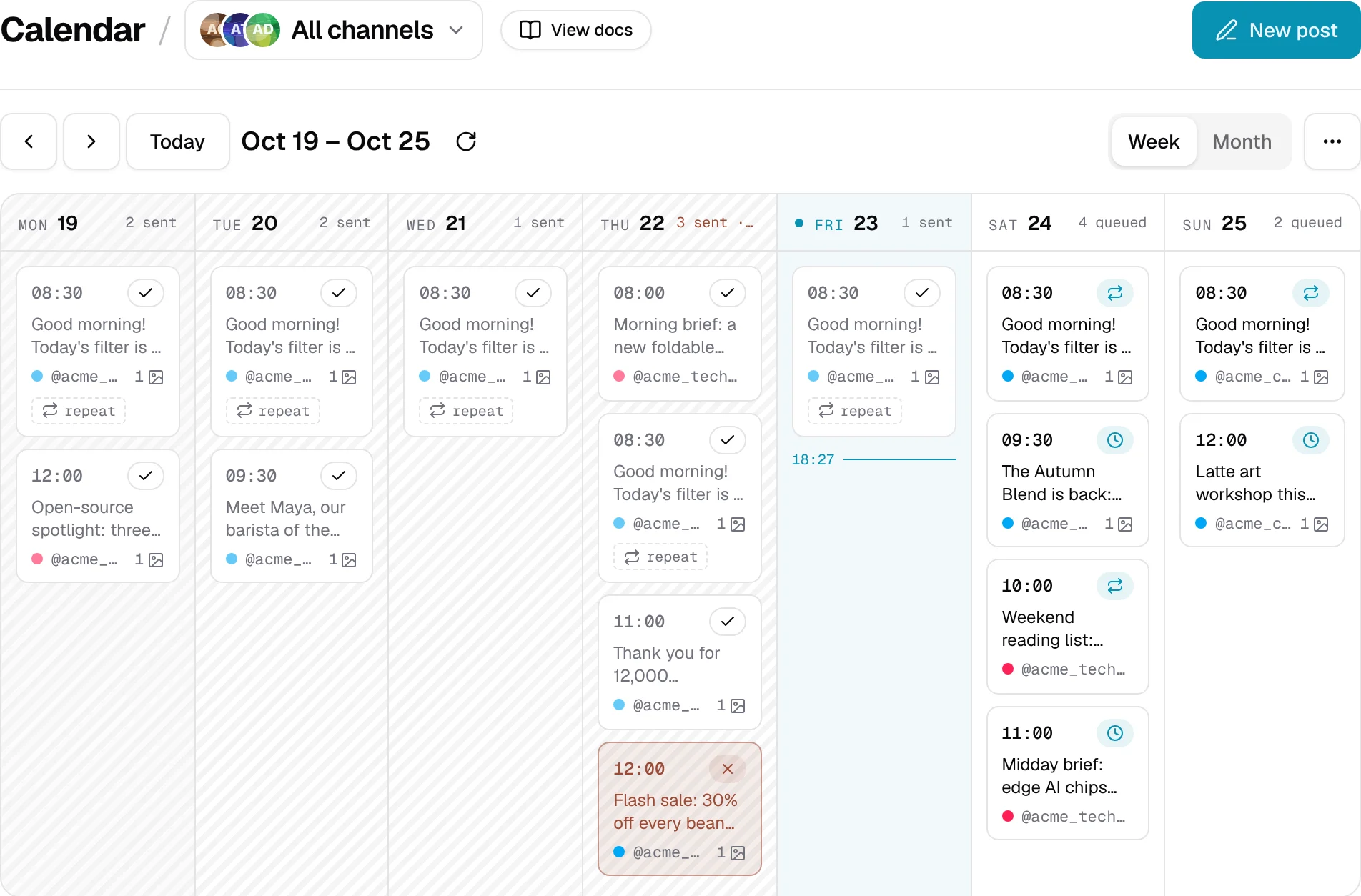
The calendar opens on the current week. Each column is a day, and each card is one post.
- Press Month to see the whole month at once. Busy days show the first few posts and a +N more link.
- Use the arrows to go back or forward, and Today to come back to now.
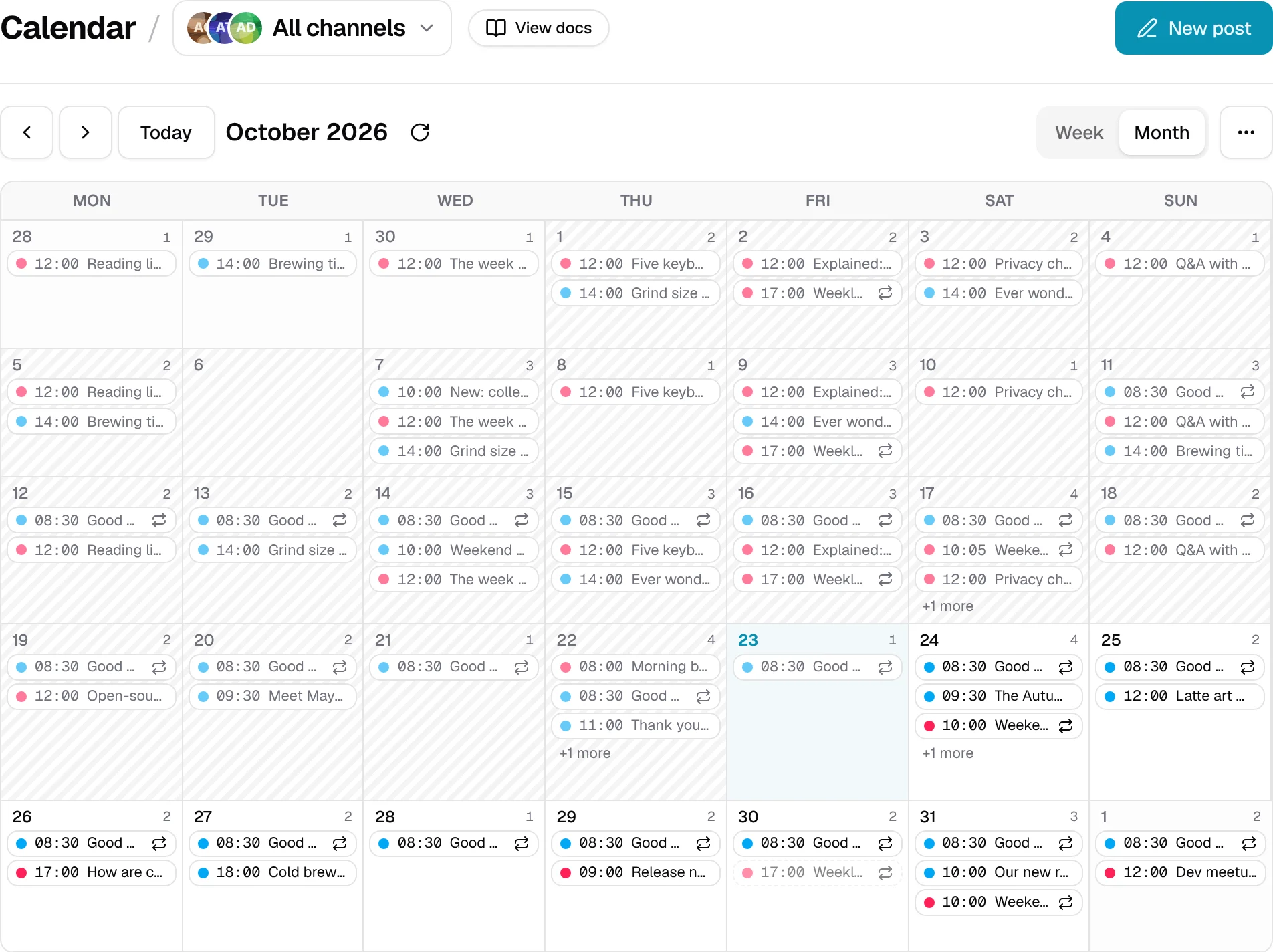
Show one channel or all of them
Next to the page title you'll see All channels. Click it to pick a single channel when you only want to see its posts. Your choice stays the same when you move to other pages.
What the cards tell you
Each card shows the time, the channel and the first words of the post. A small label tells you where the post is:
| Label | What it means |
|---|---|
| Scheduled | It's waiting and will go out at that time. |
| Sent | It's already in your channel. |
| Failed | Telegram didn't take it. Open it to see why and try again. |
| repeat | It's a post that goes out regularly, for example every morning. |
Look at one day
Click an empty spot in a day, or its date, and the day opens in a panel on the right. You'll see that day's posts in order, with a Now line on today so you know what's next.
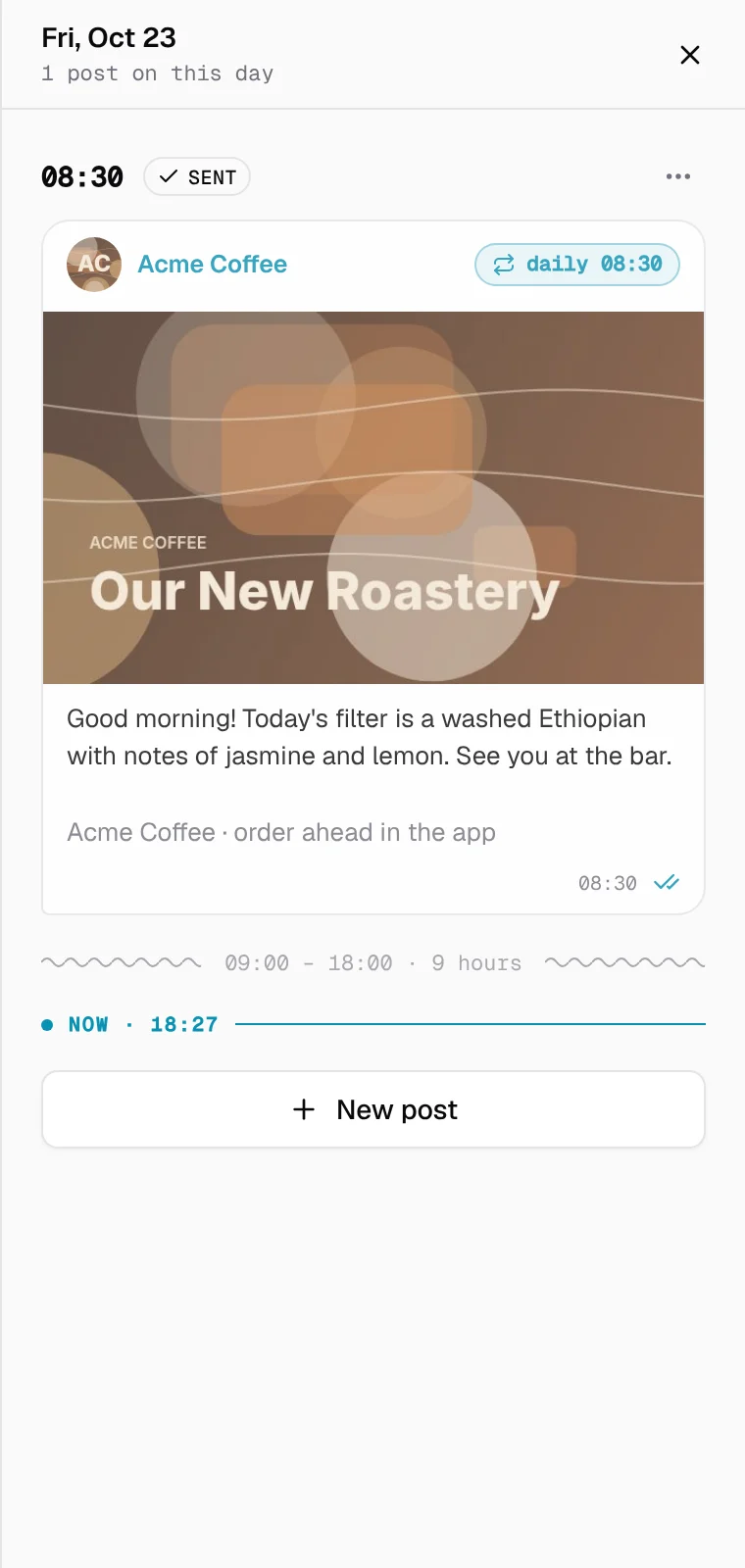
Click any post to see it the way your readers will see it in Telegram.
Write a new post
- Press New post at the top of the page, or
- hover over a day and press New post inside it to start a post for that date.
Either way, the post editor opens. Writing a post explains it step by step.
Change, move or cancel a post
Open the post from the calendar, then:
- To change the text or the time, press Edit, make your changes and press Save.
- For anything else, press the ⋯ button next to the time.
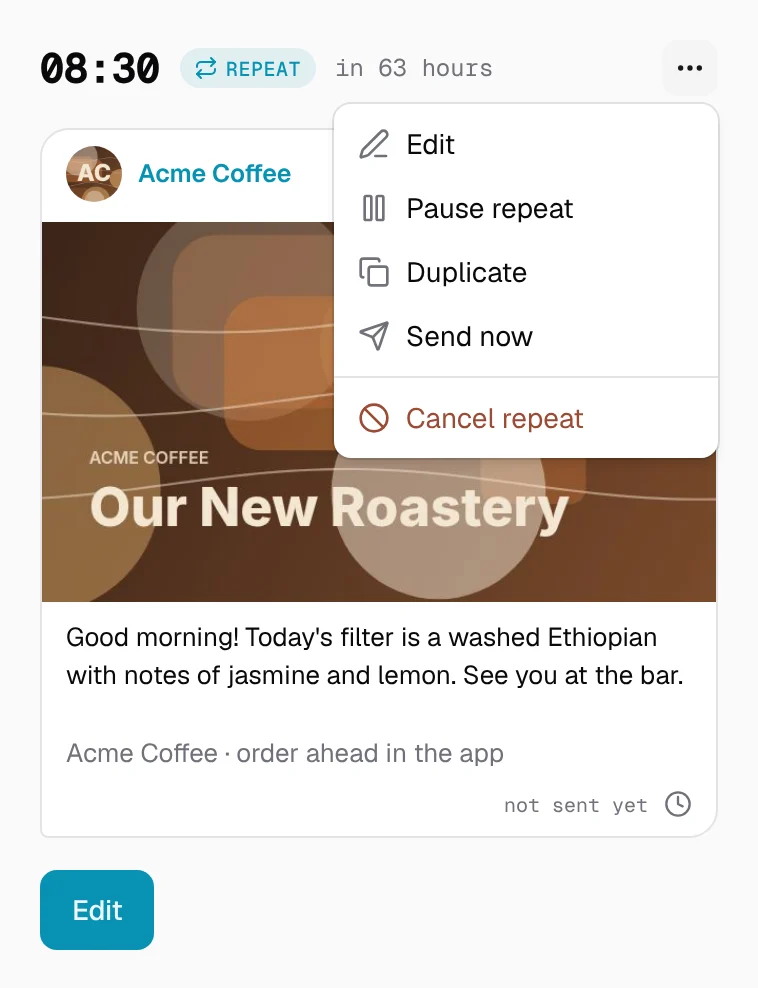
| Button | What happens |
|---|---|
| Duplicate | Makes a copy you can send at another time. |
| Send now | Sends it straight away (you'll be asked to confirm). |
| Pause repeat | Stops a regular post for now; Resume repeat starts it again. |
| Cancel | Stops a planned post from going out. |
| Delete from Telegram | Removes a post that was already sent. You can't undo this. |
Good to know
- Times are shown in your own time zone, the one your computer uses.
- Team members who aren't admins can look at everything but can't change anything. They see View only instead of New post.
- Want to share what you're looking at? Copy the link from your browser's address bar. It opens the same week, channel and post for the other person.
- Your AI assistant can move posts too. With the Creator tools connector, ask it to "move Friday's posts to Saturday".