 Statiko Docs
Writing a post
Write a post, add photos or files, pick your channels, then send it now, plan it for later or keep it as a draft.
This is where you write a post. The editor opens in a window over the page you're on: you write on the left, and on the right you see the post the way your readers will see it in Telegram.
It's the same window for everything: new posts, drafts, planned posts, posts that go out regularly and posts that already went out.
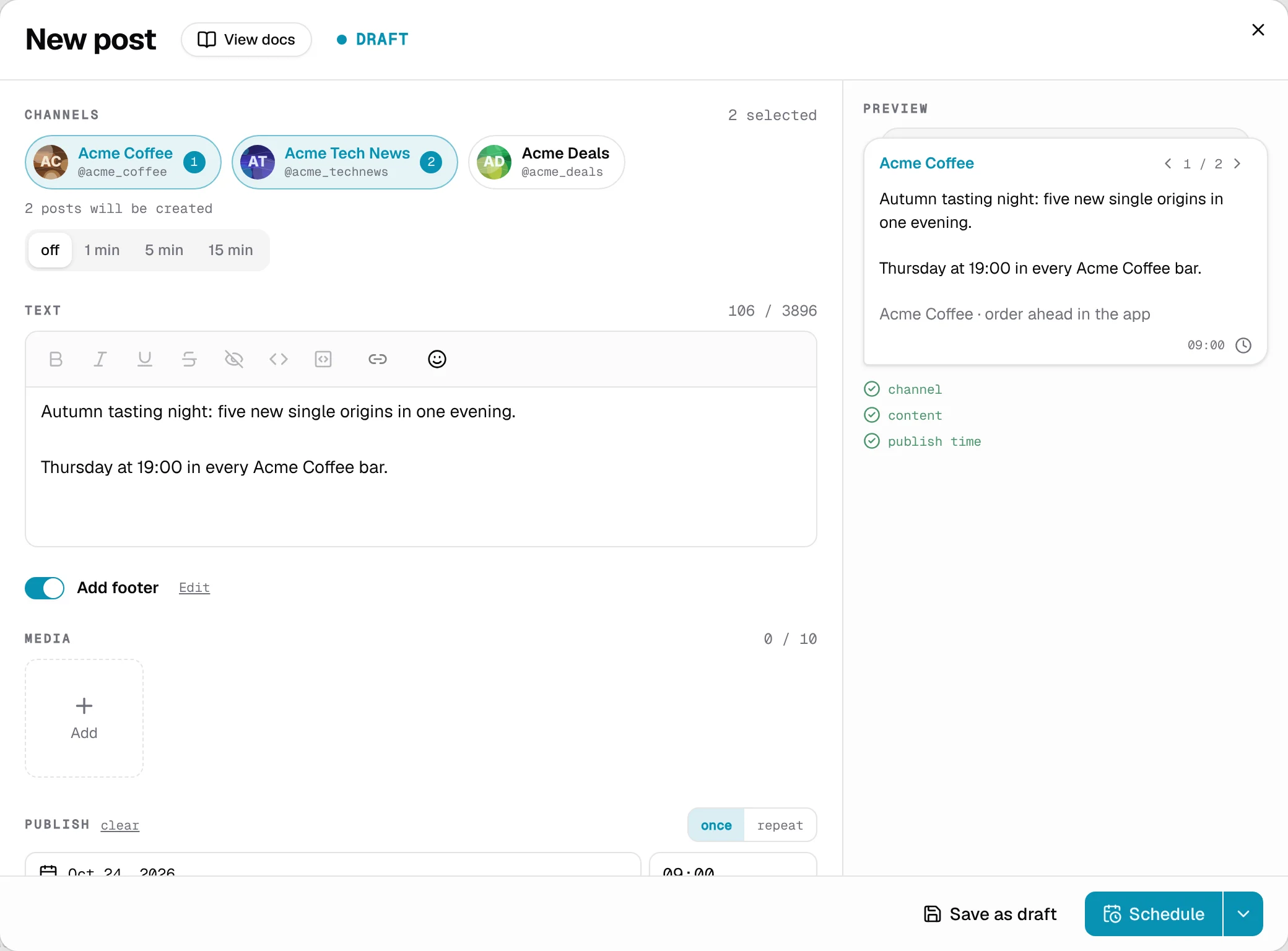
Open the editor
- Press New post on the Calendar, or hover over a day and press New post inside it to start a post for that date.
- Open a draft from Drafts.
- Select files in the Media library and press Create post.
- Click any post on the calendar, then press Edit or View post.
Choose your channels
Under Channels, click a channel to add it, and click it again to take it off. If you only have one channel, it's already picked for you.
Pick several channels to send the same post to each of them. They go out in the order you picked them.
Write your text
Type your post in Text. To make words bold, italic and so on, select them and use the buttons above the box. Text you paste in loses its formatting, so style it after pasting.
To add a link, select the words, press the link button, paste the web address and press Link the selection.
A counter shows how much room you have left.
Add photos, videos or files
Under Media, press Add and choose:
- Upload from computer to pick files. You can also drag them onto the section.
- Browse library… to pick something you've already uploaded.
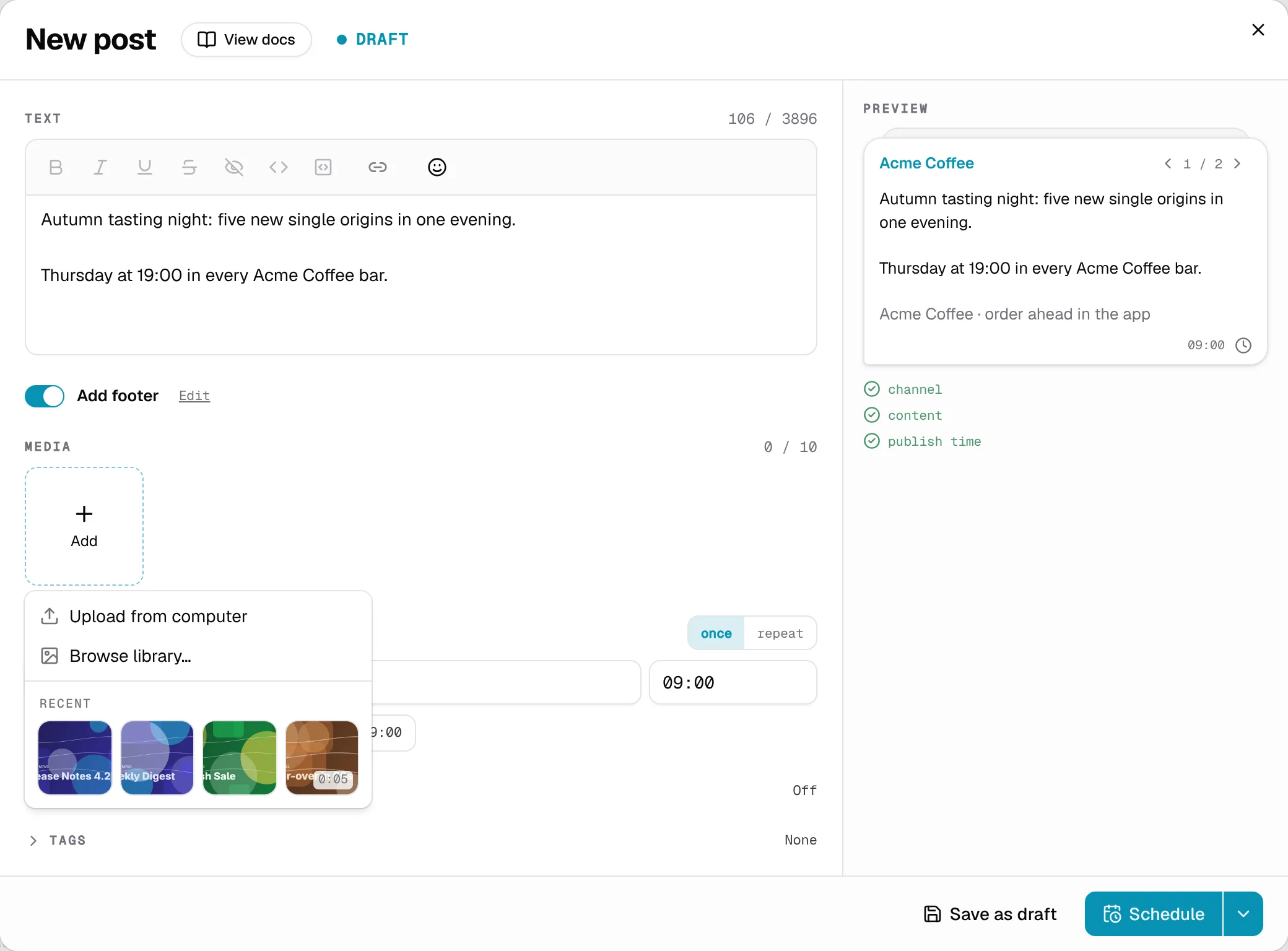
You can add up to 10. Drag them around to change the order. Your text goes under the first one.
Choose when it goes out
Under Publish, pick a Date and a Time, or press one of the shortcuts: In 1 hour, Tonight 20:00 or Tomorrow 09:00.
Want the post to go out regularly, for example every morning? Choose repeat instead of once. Repeats explains how.
Have it removed later
Some posts are only worth keeping for a while. Open Auto-delete and pick how long the post should stay in your channel before it's removed. Leave it on Off to keep it.
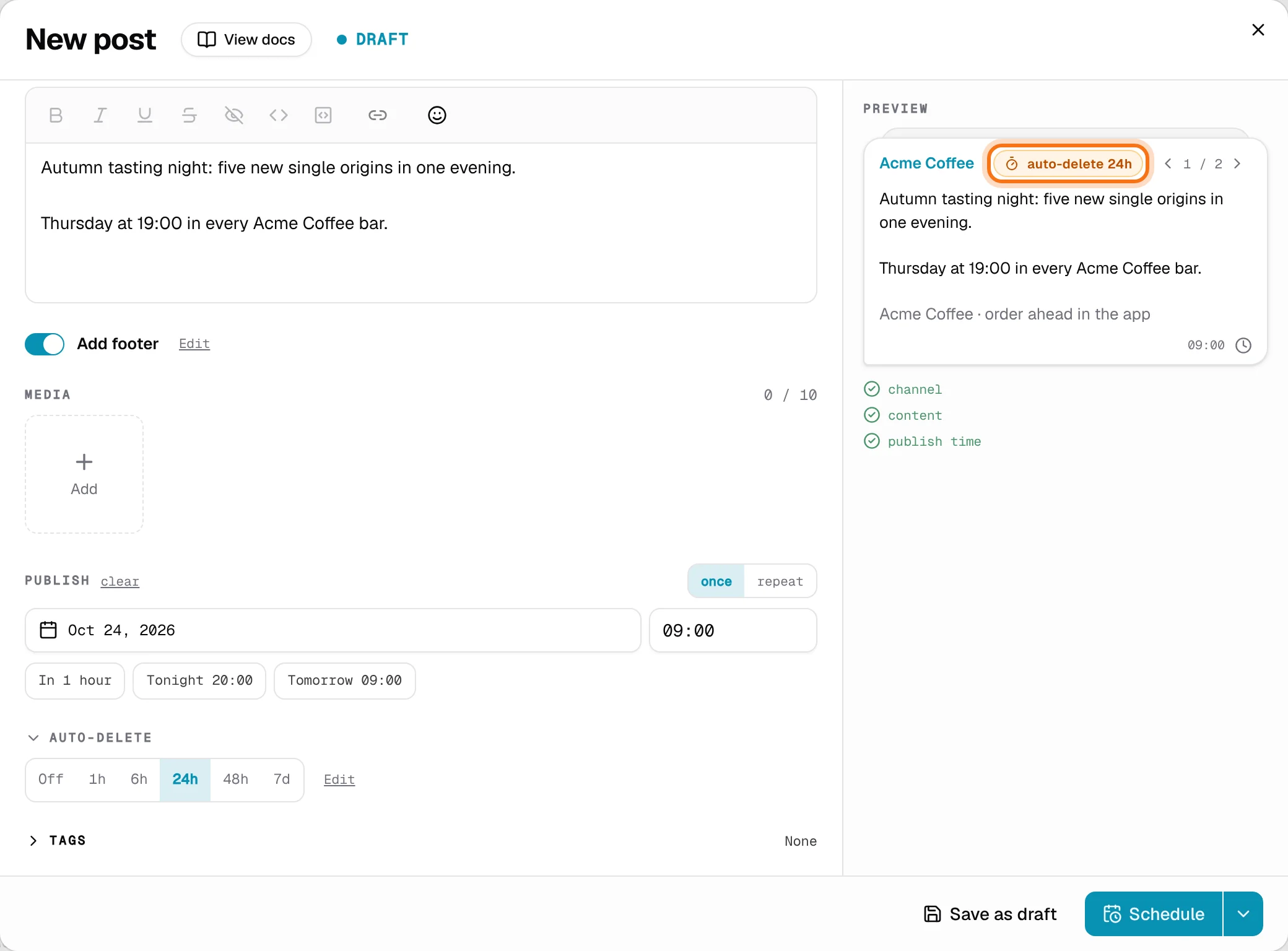
Check the preview
The right side of the window shows your post the way your readers will see it. If something would stop it from going out, such as text that's too long, it's listed under the preview.
Send it, plan it or save it for later
When you're happy with the post, press one of these at the bottom of the window:
| Button | What happens |
|---|---|
| Save as draft | Keeps it in Drafts to finish later. Channel and time can wait. |
| Schedule | Plans it to go out at the time you picked, on every channel you picked. |
| Send now | Sends it straight away. You'll find it in the small menu next to Schedule. |
| Create repeat | Shows up instead of Schedule when you chose repeat, and starts a post that goes out regularly. |
Change a planned post
Open the post with Edit, make your changes and press Save. To stop it from going out, press Cancel post.
Good to know
- Times are in your own time zone, the one your computer uses.
- Closed the window by mistake? If you had unsaved changes, you'll be asked whether to Save, Discard or Keep editing.
- Team members who aren't admins can open any post or draft, but can't change anything.