 Statiko Docs
Repeats
Manage posts that go out on a schedule, pause them, and see every run they produced.
Some posts go out again and again: a morning greeting, a weekly digest. Write one as a repeat, choose how often it should go out (every day, every weekday, once a week or once a month) and Statiko posts it for you each time.
You'll find them in the menu on the left: open Posts, then Repeats. The one that goes out next is at the top, and paused ones are at the bottom.
Set up a post that repeats
- Press New draft, or open a draft you already have.
- Under Publish, choose repeat.
- Pick how often: Every day, Every weekday, Weekly on… or Monthly on day…. Then set the Time of day.
- Check the next few dates shown underneath, then press Create repeat.
Writing a post explains the editor step by step.
What the cards tell you
Each card is one repeat. The labels show how often it goes out, for example daily 09:00 or weekly 18:30. The bottom of the card says Repeat with when it goes out next, or Paused if you stopped it for now.
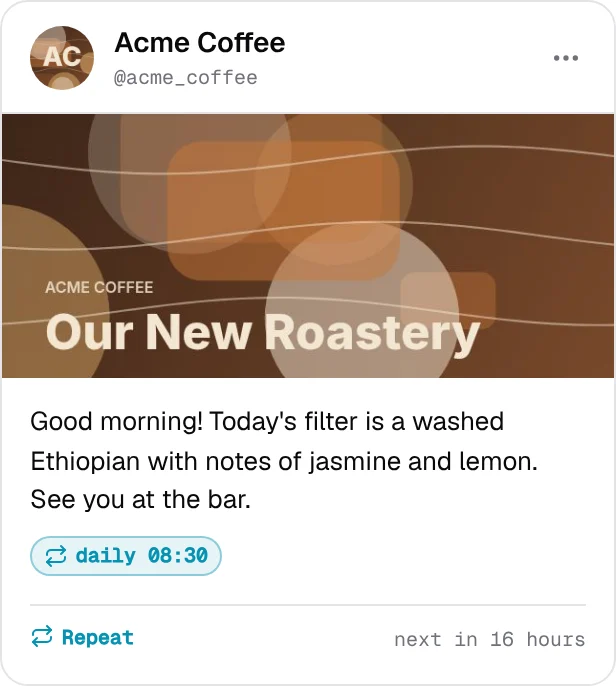

Each time a repeat goes out, it becomes an ordinary post with a repeat label. While it waits, you'll see it in Scheduled, and once it's out, in Sent.
Pause, copy or stop a repeat
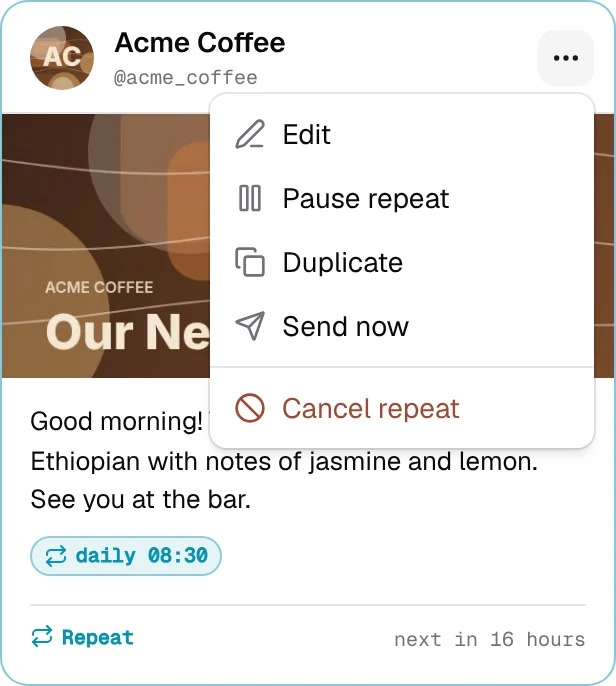
Press the ⋯ button on a card:
| Button | What happens |
|---|---|
| Edit | Opens the repeat so you can change it. |
| Pause repeat / Resume repeat | Stops it for now, or starts it again. Its settings are kept. |
| Duplicate | Starts a new repeat with the same text and the same schedule. |
| Send now | Sends one copy straight away. The schedule carries on as before. |
| Cancel repeat | Stops it for good, after you confirm. |
Change a repeat
Click the card, or choose Edit. Change the text, the media, the schedule or auto-delete, then press Save. Your changes apply from the next post on. Posts that already went out stay as they are.
See every post it sent
When you open a repeat, the panel next to the preview shows when it goes out next. Under Runs you'll find every post the repeat has sent so far, with when it was planned, when it actually went out, and how it went. Click one to open that post, for example to retry one that failed (see Sent).
Good to know
- Times follow the channel's time zone, not your computer's.
- One repeat for several channels becomes a separate repeat for each channel.
- Cancelling a repeat doesn't touch posts it already sent. They stay in your channel.
- Picking a channel, searching and view-only access work the same as on the other Posts pages. Drafts explains them.