 Statiko Docs
Analytics
See how many people join and leave your channels, and how much you post.
How are your channels doing? Analytics shows how many subscribers you have, how many people joined and left, and how often you posted through Statiko.
You'll find it under Analytics in the menu on the left. Everyone on your team can see it.
Before you start
You need at least one Telegram channel connected. If you haven't done that yet, the page says Your channel stats will appear here. Press Connect a channel to connect one, or read Channels first.
Show one channel or all of them
Next to the page title you'll see All channels, which adds up your channels together. Click it to pick a single channel instead. Your choice stays the same when you move to other pages.
You can also get here from the Channels page: click a channel's name to see its numbers.
Pick a time period
Press 7D, 14D or 30D at the top right to look at the last 7, 14 or 30 days, up to and including today.
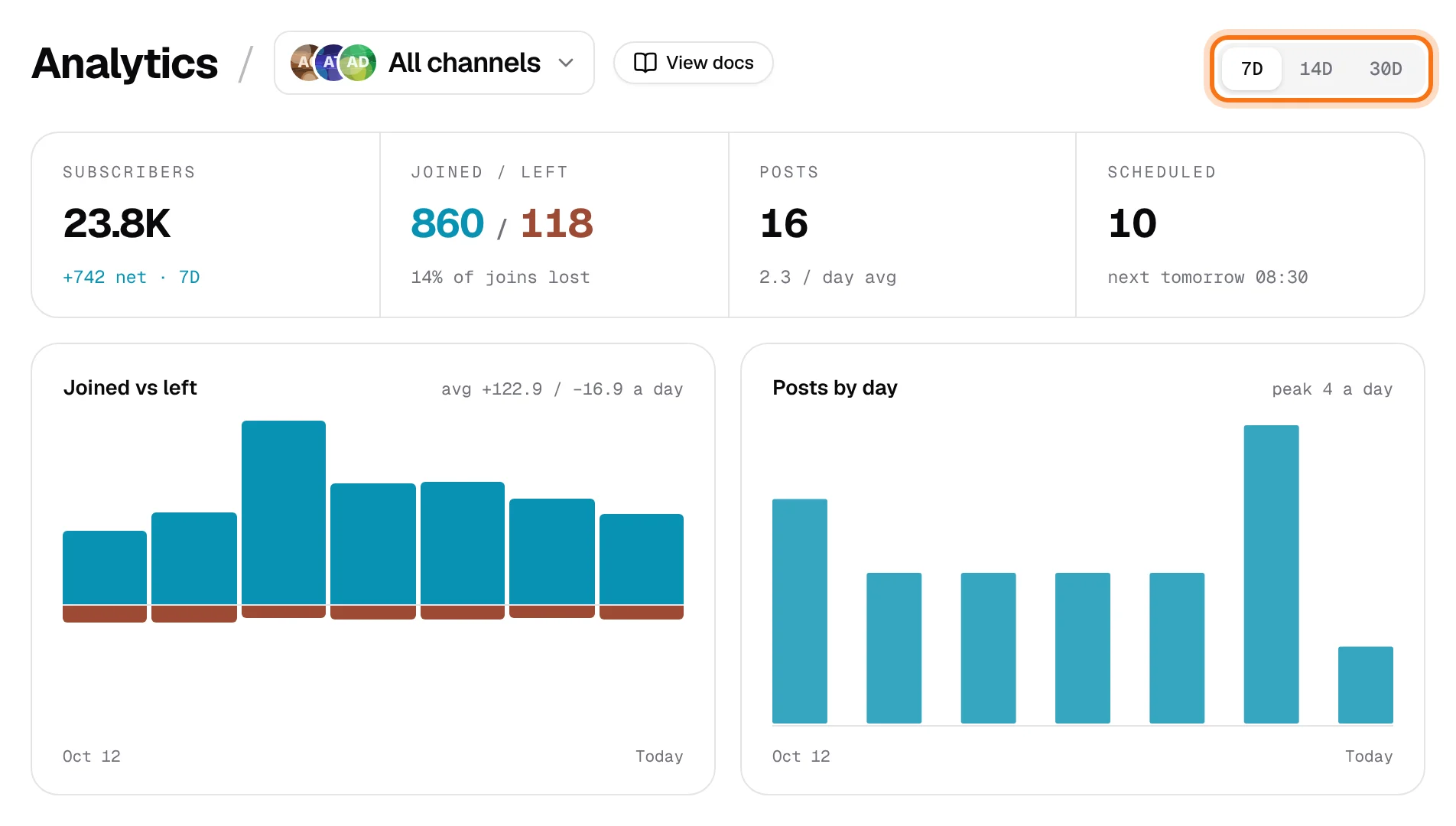
The four numbers at the top

| Number | What it tells you |
|---|---|
| Subscribers | How many subscribers you have now. Underneath, how many you gained or lost in the period. |
| Joined / left | How many people joined and how many left. Underneath, the people who left as a percentage of those who joined. |
| Posts | How many posts Statiko sent, and how many that is per day on average. |
| Scheduled | How many posts are waiting to go out, and when the next one goes. |
The charts
- Joined vs left has one bar per day. People who joined go up, people who left go down.
- Posts by day shows how many posts Statiko sent each day.
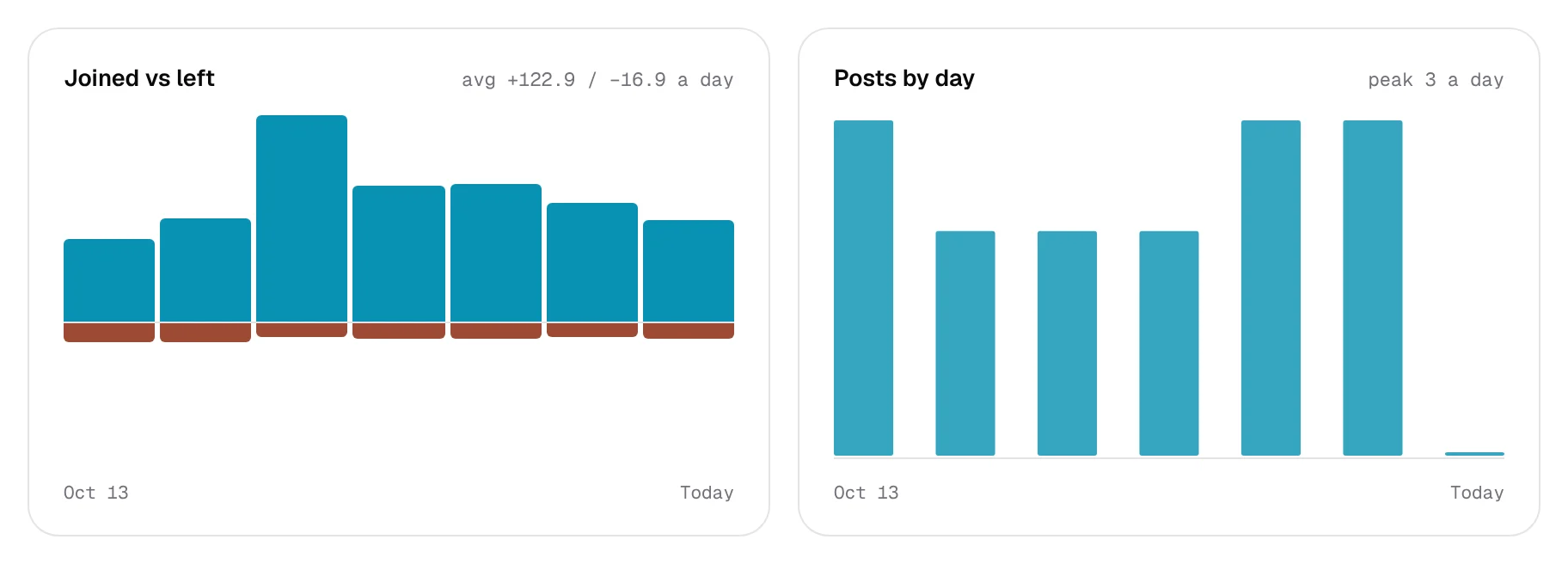
Hover over a day to see its exact numbers in the top right corner of the chart.
Good to know
- The numbers start when you connect a channel, or about then. Statiko can't see who joined or left before that, so a channel you've just connected starts at zero.
- Posts only counts posts sent through Statiko. Messages you published straight in Telegram aren't counted, even after you use Sync messages on the Channels page.
- Days follow your own time zone, the one your computer uses.
- Want to share what you're looking at? Copy the link from your browser's address bar. It opens the same channel and period for the other person.
- Ask your AI assistant. With the Creator tools connector, it can pull these numbers and tell you which posts did best.