 Statiko Docs
Claude
Add Statiko as a custom connector in Claude or Claude Code.
These steps work for both connectors. The screenshots show Telegram Analytics; for Creator tools, use its URL and name instead.
Open the Claude web app.
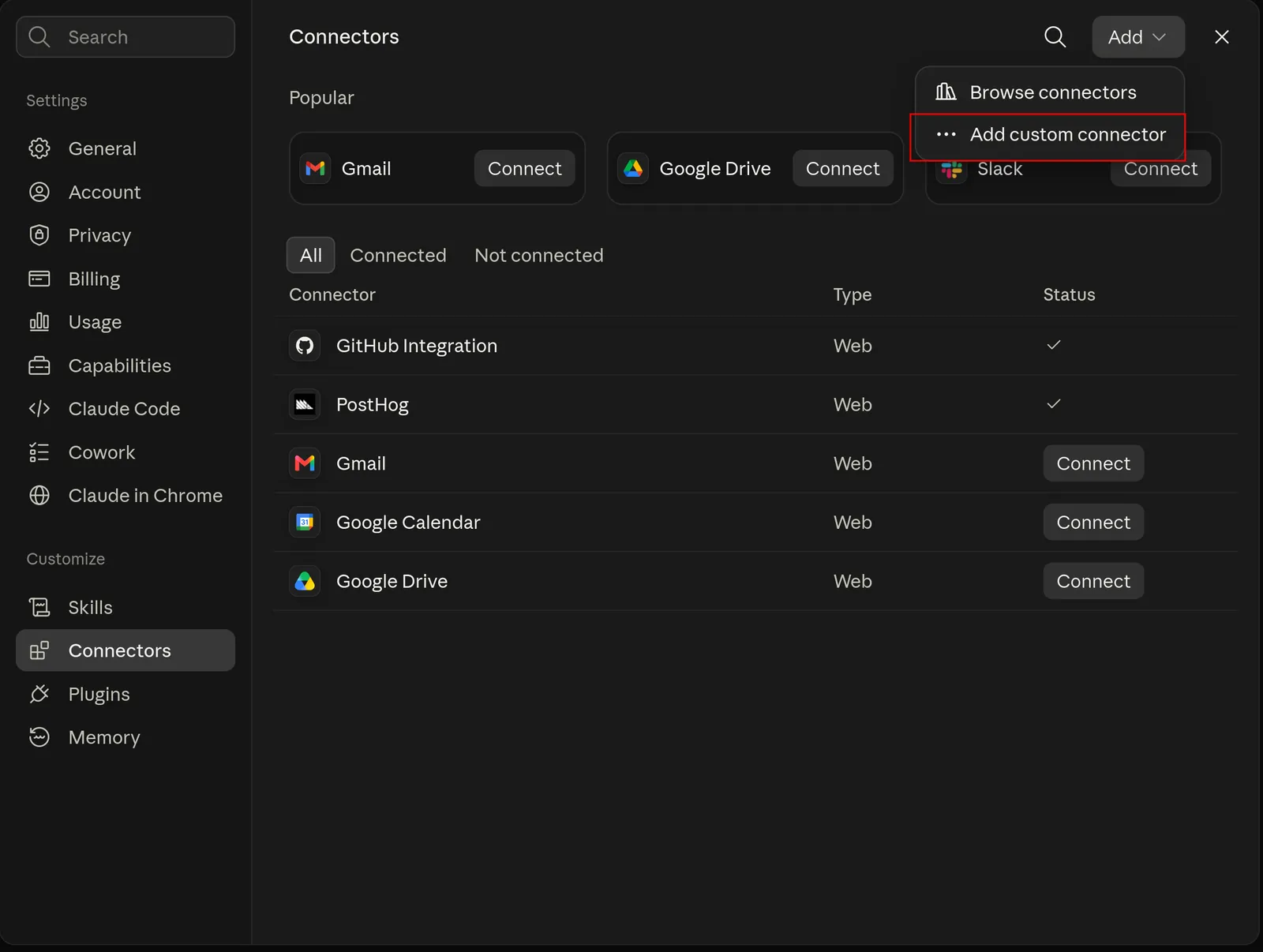
1. Open Settings → Connectors
Open the Add menu in the top right and pick Add custom connector.
2. Name it and paste the URL
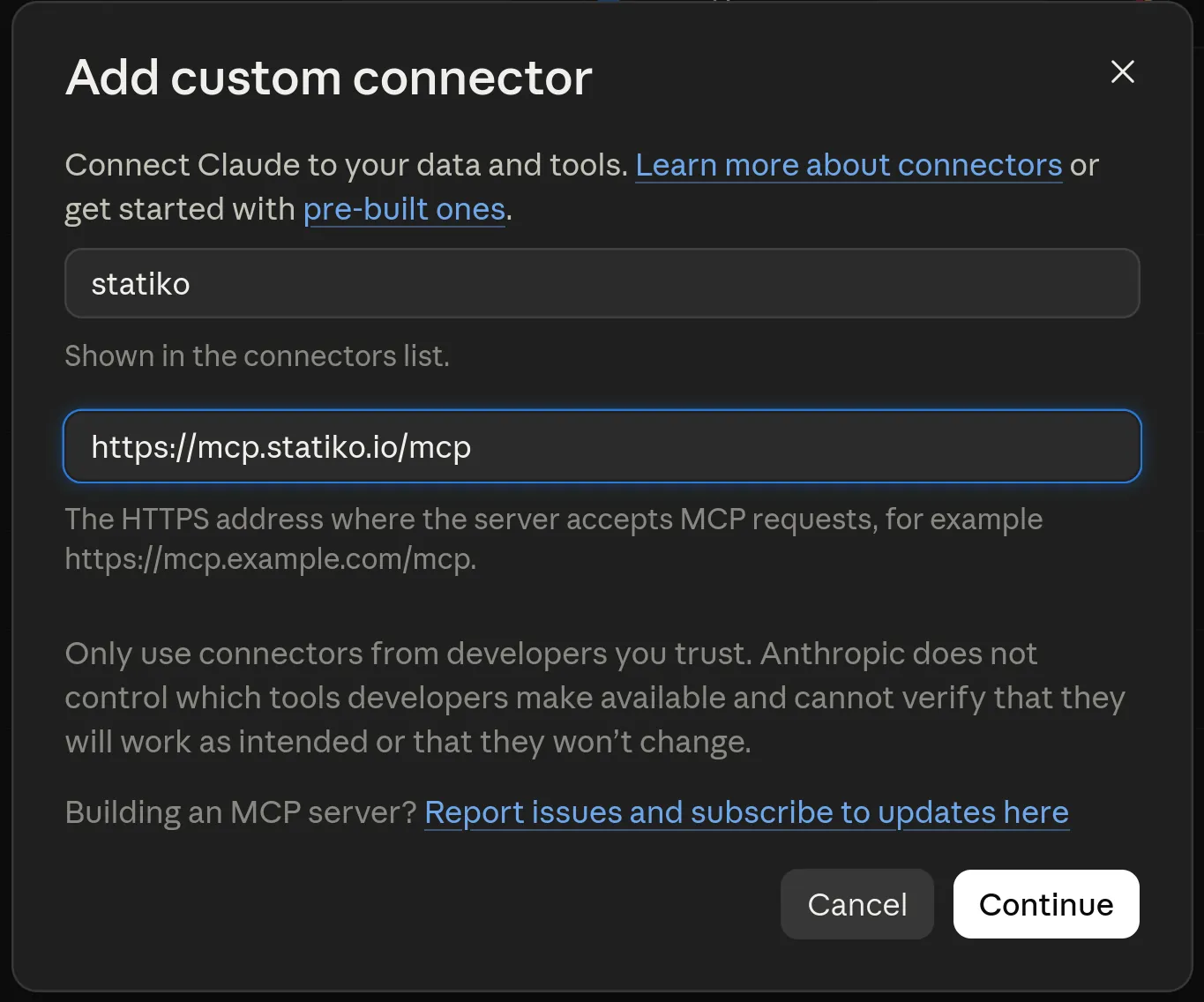
Name it and paste the connector URL as the remote MCP server URL:
| Connector | Name | URL |
|---|---|---|
| Telegram Analytics | statiko | https://mcp.statiko.io/mcp |
| Creator tools | statiko-creator | https://creator-mcp.statiko.io/mcp |
3. Leave the auth settings as they are
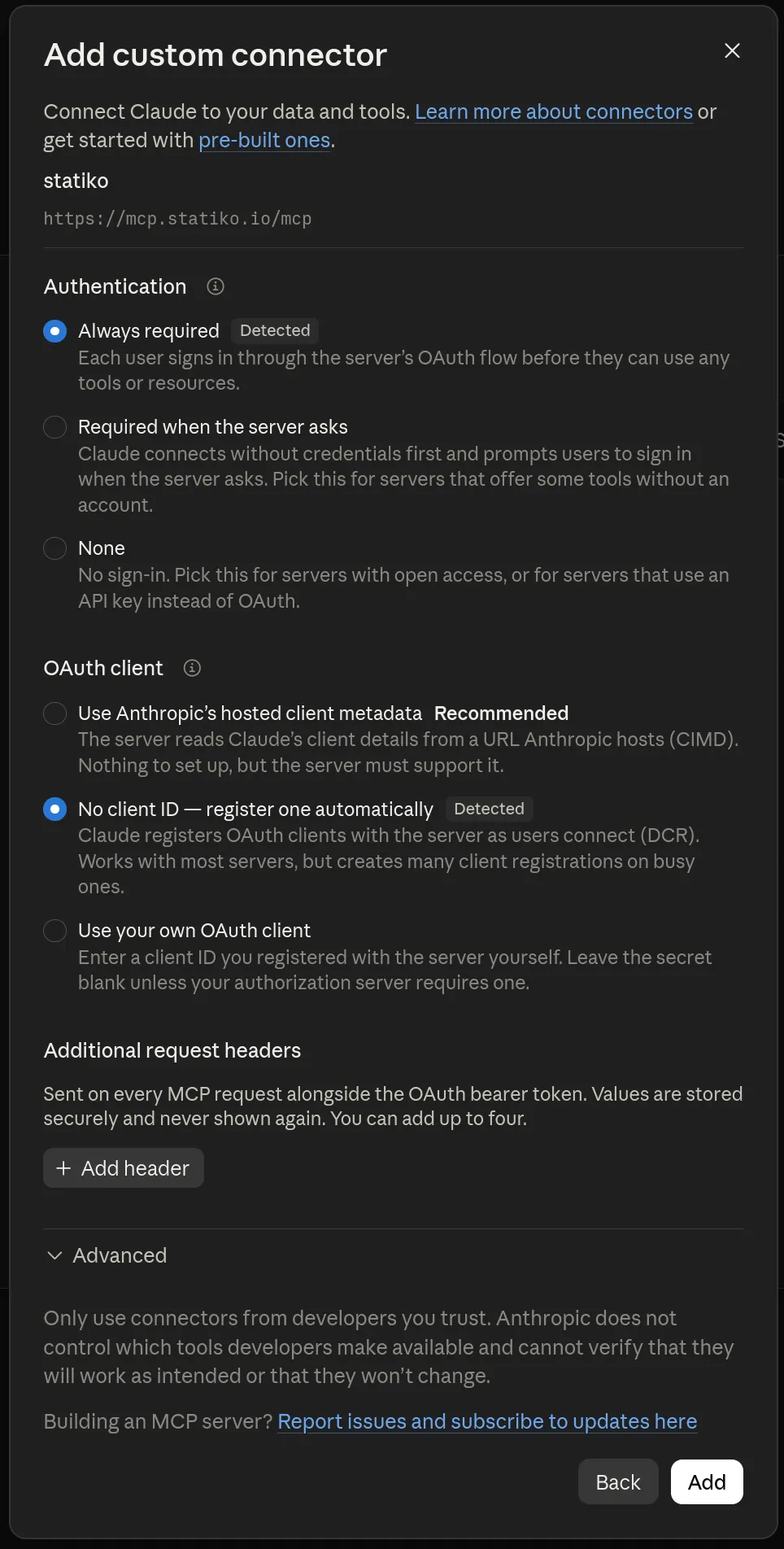
Claude fills this page in for you: Always required and No client ID — register one automatically, both marked Detected. Leave the request headers empty and press Add.
There's no API key. If you set authentication to None, every tool call fails with 401.
4. Press Connect
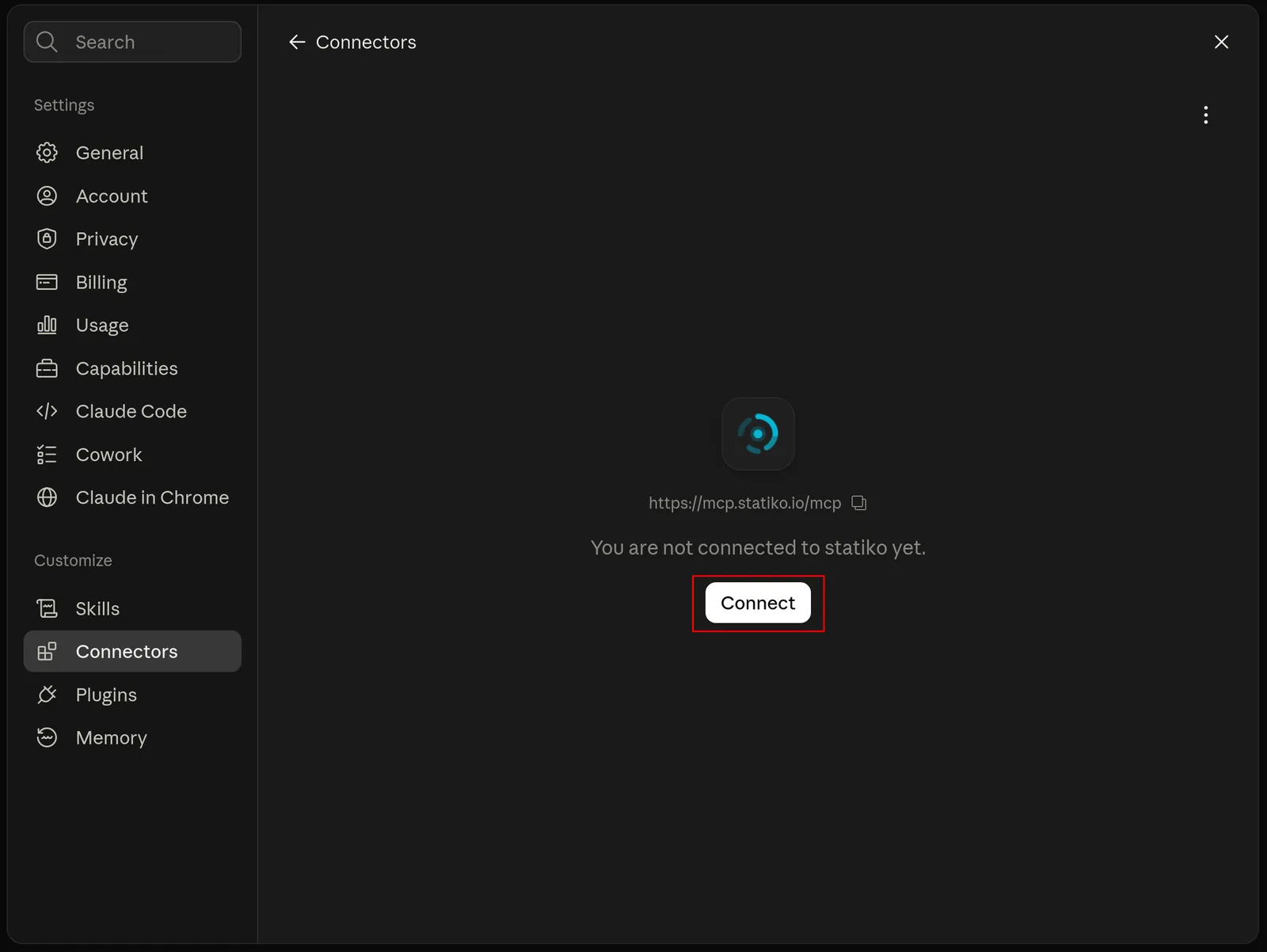
The connector is added but not signed in yet. Connect starts the sign-in.
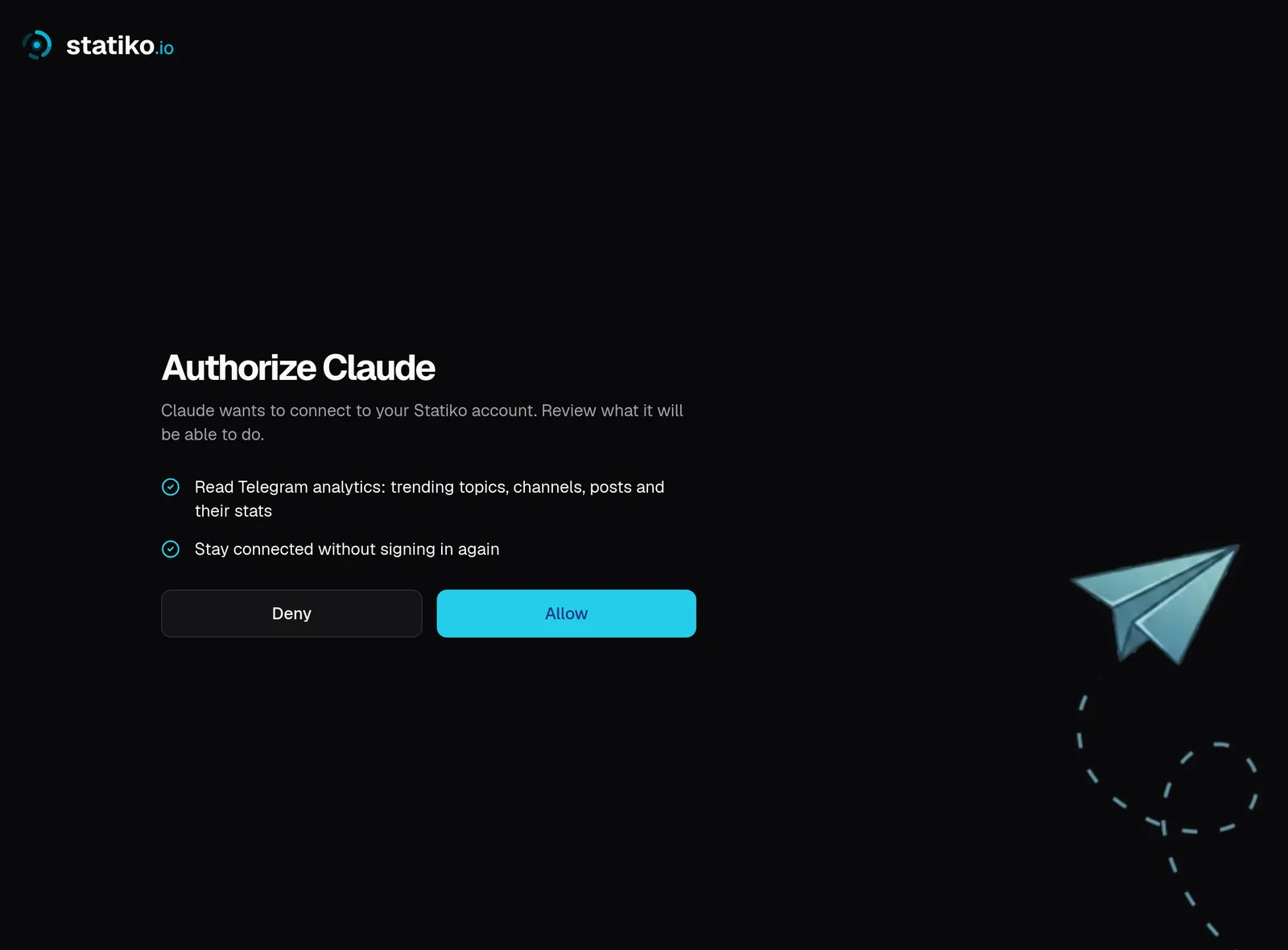
5. Sign in with your Statiko account
Claude sends you to statiko.io. Check what Claude is asking for and press Allow.
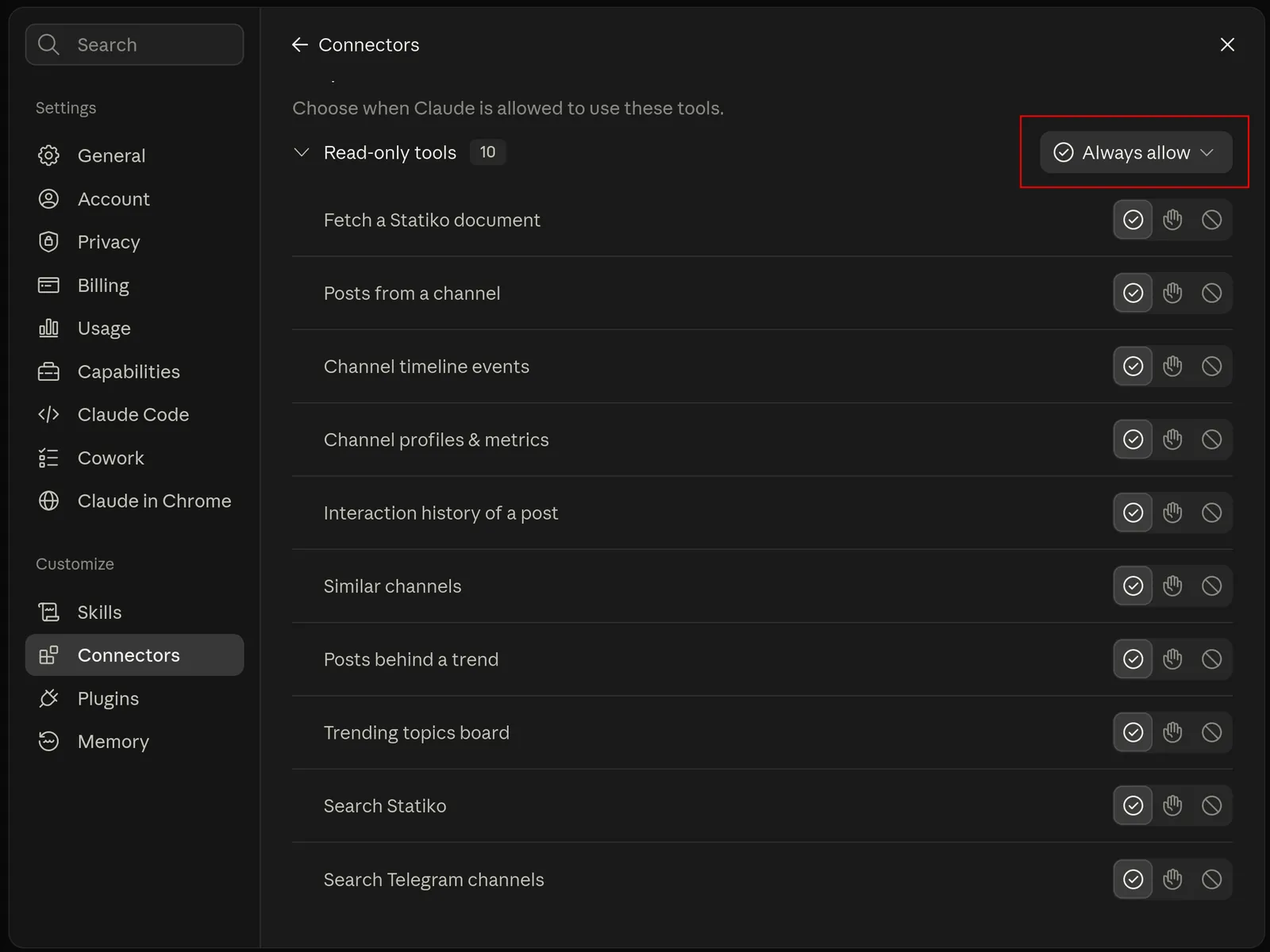
6. Choose which tools Claude can use without asking
For Telegram Analytics, ten tools appear. None of them changes anything, so set the whole group to Always allow, or Claude stops to ask in the middle of every answer.
For Creator tools, set Always allow only on the tools that read data. Leave the ones that save, schedule, move or delete on Needs approval, so Claude checks with you first.
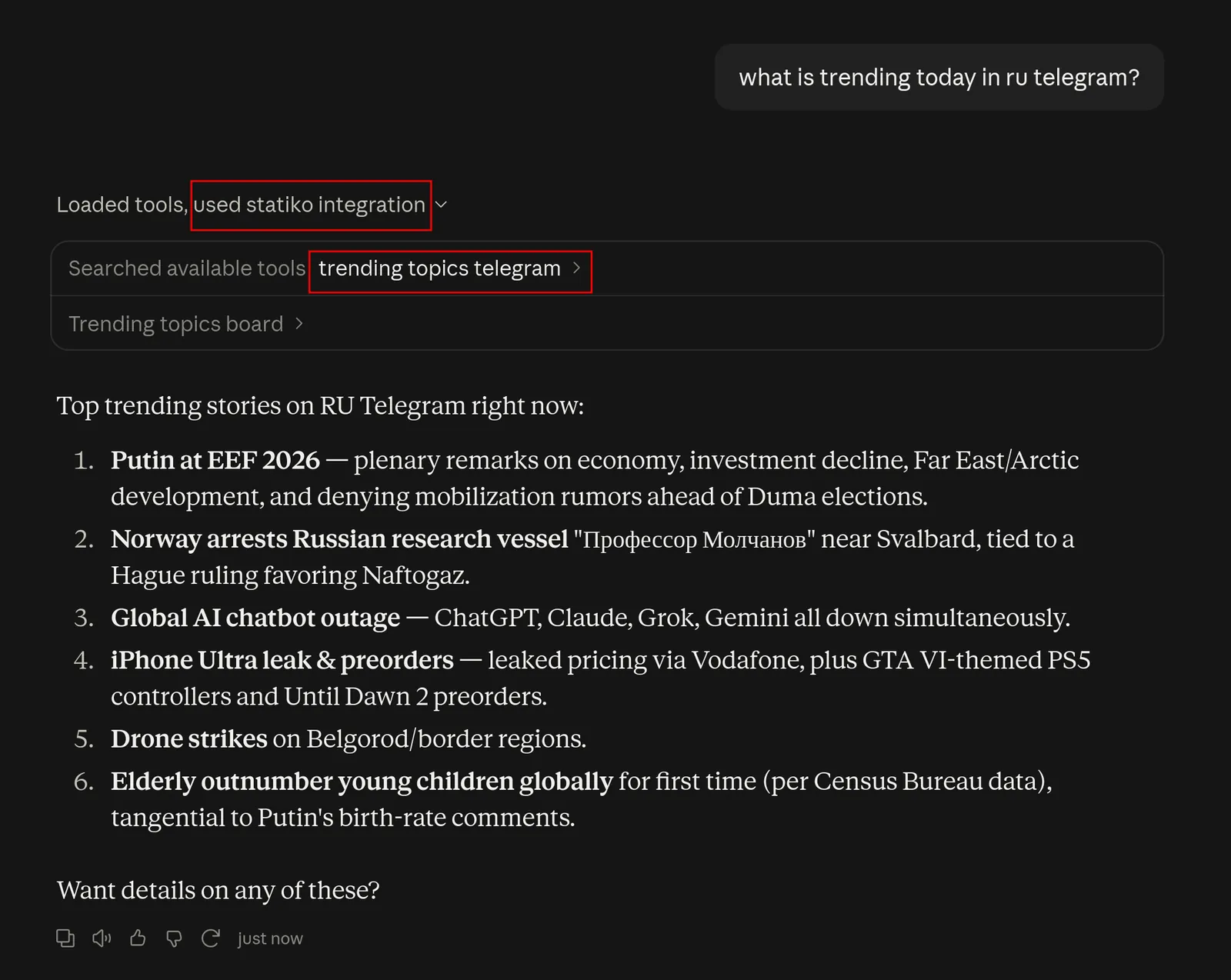
7. Ask something
Start a new chat and ask what's trending today in RU Telegram. When Claude shows it used the statiko integration, you're connected.
Claude Code
Add it from the terminal:
claude mcp add --transport http statiko https://mcp.statiko.io/mcp
claude mcp add --transport http statiko-creator https://creator-mcp.statiko.io/mcp
Troubleshooting
- No tools after adding it. The connector was added but never signed in. Open it, press Connect and finish the Statiko sign-in.
- Every call returns 401. Authentication is set to None. Set it back to Always required and connect again.
More in the overview.